A selection limits your work to part of the drawing: while it exists, brushes and effects only act inside it. You can copy, cut, fill or flip the selected part, or move it with Transform.
Opening the tool
Tap Selection on the right bar. The button is shown in Advanced mode – use the Basic / Advanced switch at the top of the screen.
Selection doesn't work on a text layer. Rasterize it first from the layer menu (Rasterize text) or pick another layer.
Selection kinds
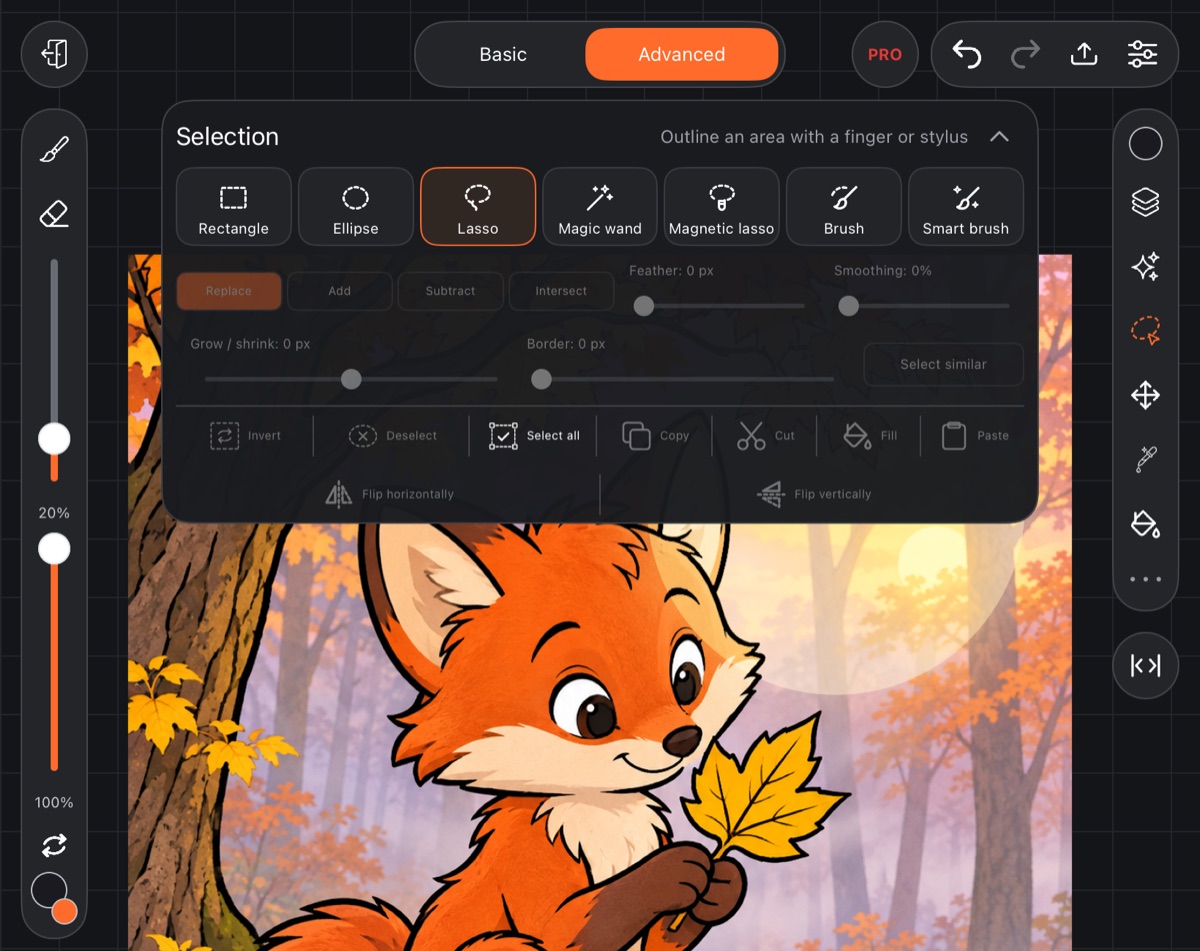
Choose a kind with the cards at the top of the panel. The app remembers your choice.
- Rectangle and Ellipse – drag across the canvas from corner to corner.
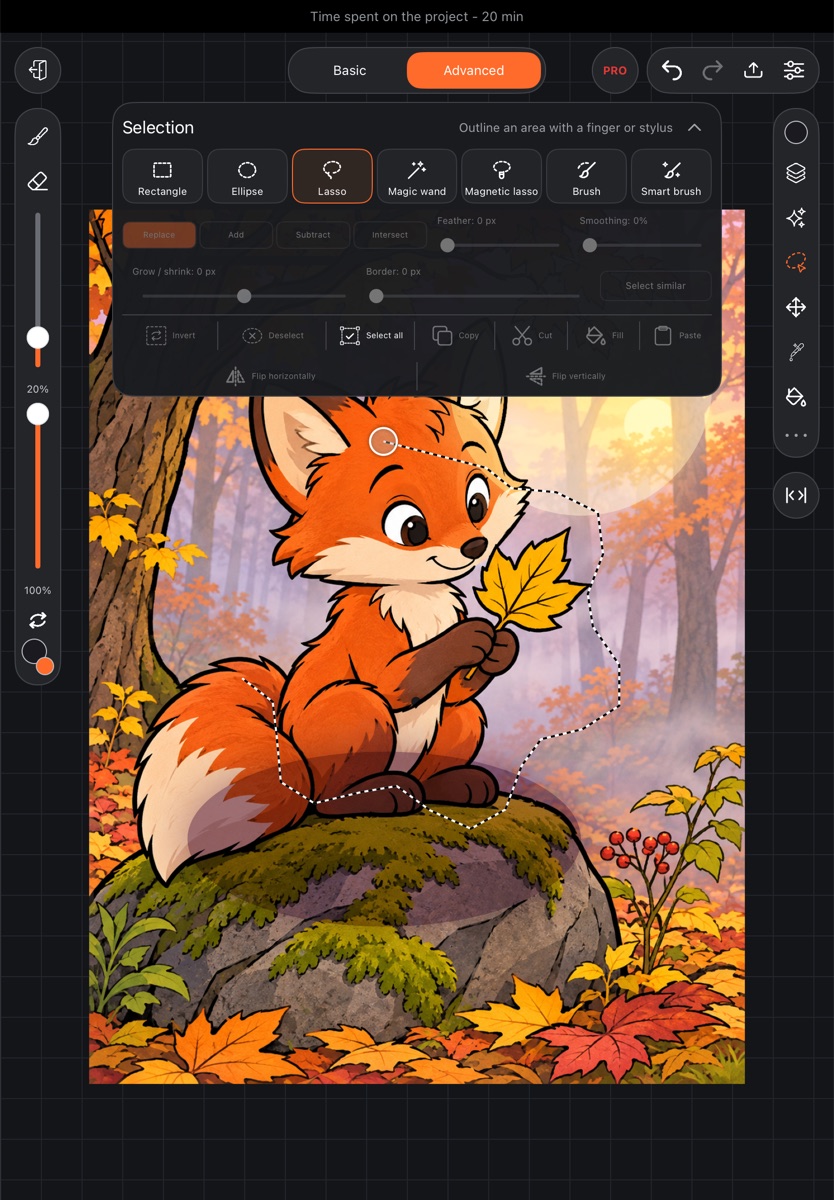
- Lasso – draw around an area. You can trace the outline in several touches: after you lift, the next touch continues it with a straight segment. The selection is made when you come back to the circle at the start of the outline.
- Magnetic lasso – like the lasso, but points stick to the edges of the drawing.
- Magic wand (Wand on a phone) – tap an area to select a region of similar color.
- Brush – paint the selection on.
- Smart brush – each stroke grows the selection over similar colors.
The selection brushes have a Brush size slider.
Add, subtract, intersect
Once there's a selection, the mode buttons below the cards decide what the next one does:
- Replace – the new selection replaces the old one.
- Add – the new area is added.
- Subtract – the new area is cut out of the selection.
- Intersect – only the overlap stays.
Selection edge
These sliders work only while something is selected:
- Feather – a soft edge, in pixels.
- Smoothing – removes jagged edges.
- Grow / shrink – right of center grows the selection, left of center shrinks it.
- Border – keeps a band of the chosen width along the edge.
You see the result as you drag, and it's saved when you let go. The slider then returns to zero, so the next drag adds to what's already done.
Select similar adds similar colors from the whole layer to the selection.
Actions
- Invert – selects everything except the current area.
- Deselect – removes the selection and closes the tool.
- Select all – the whole canvas.
- Copy – copies the layer's pixels inside the selection.
- Cut – copies and erases.
- Fill – fills the selection with the current color.
- Paste – puts what you copied on a new layer above the current one, in the same place.
- Flip horizontally and Flip vertically – mirror the selected part of the layer.
While a selection exists
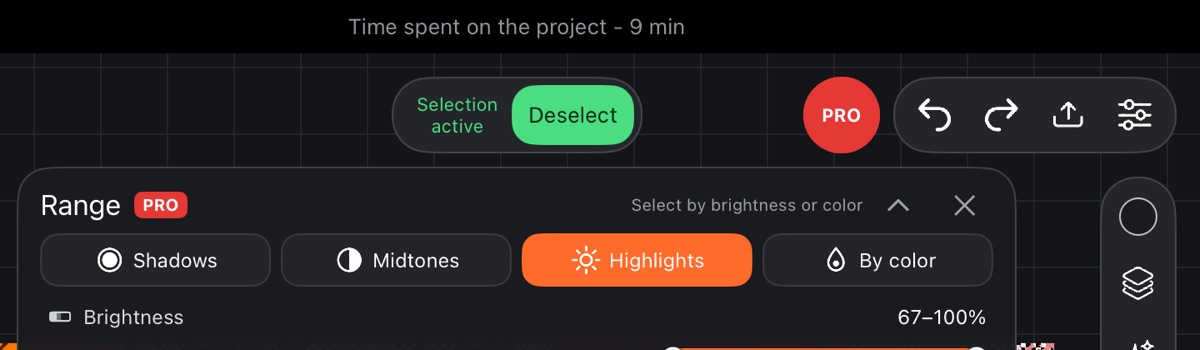
The Selection button glows green, and the mode switch at the top is replaced by "Selection active" and a Deselect button (on a phone, an icon with "✕"). Paint with any brush – the paint only lands inside.