
The palette is where you pick the brush color. The color you choose becomes the brush color right away – there's no "apply" button.
Opening the palette
Tap the active color circle on the toolbar – on a tablet it sits at the top of the right toolbar, above Layers. You don't have to hit it exactly: a tap right next to the circle opens the palette too.
On a phone the palette covers most of the screen – close it with the ✕ in its header.
Tabs
There are four tabs at the top:
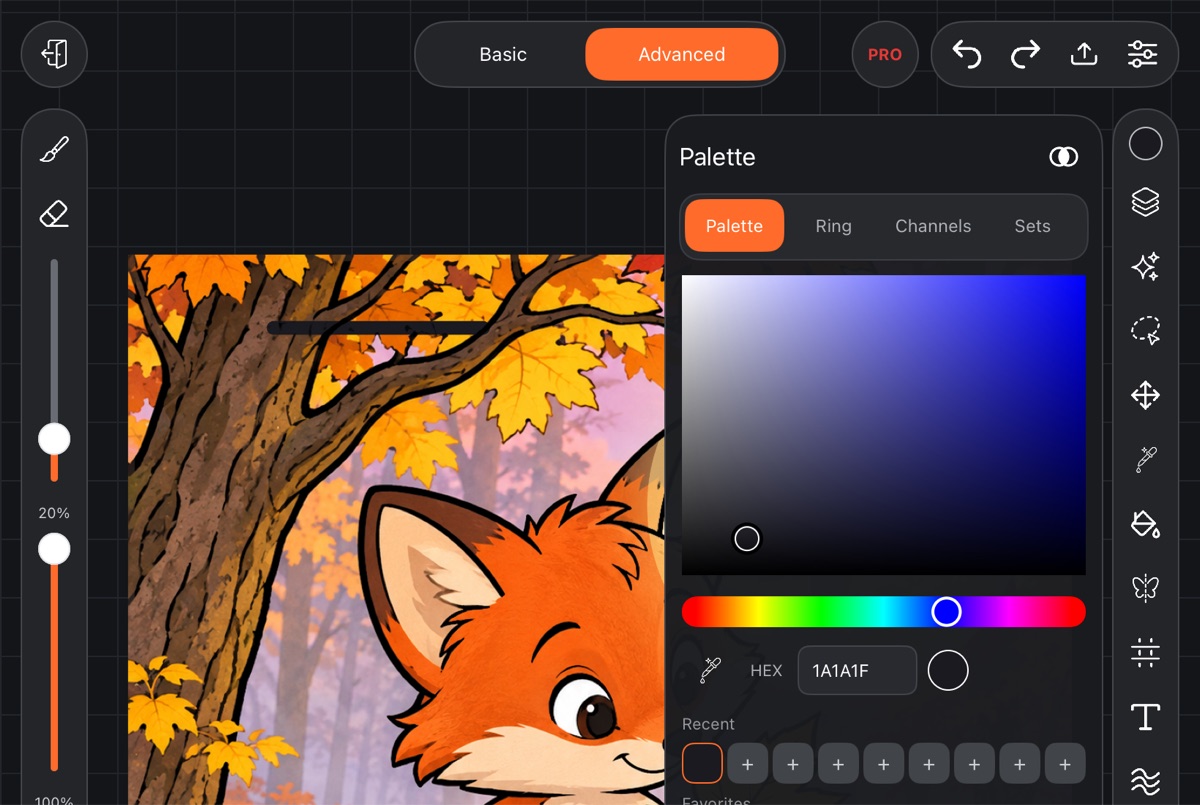
- Palette – a color field and a hue bar. Move right across the field for more saturation, down for darker. The bar below changes the hue.
- Ring – pick the hue on the ring, saturation and brightness in the square inside it.
- Channels – H, S, V sliders (hue 0–360, saturation and brightness 0–100) and R, G, B (0–255), each with its value on the right.
- Sets – ready-made palettes and your own. See My palettes.
The Mix button in the header opens color mixing – see Color mixing.
Eyedropper and HEX
Below the color field there's a row with three items:
- Eyedropper – take a color straight from the canvas. The palette closes while you pick and reopens on the same tab once the color is taken. See Eyedropper.
- The HEX field – type a six-character color code, like
FF6B2A. The color is applied as soon as the sixth character is in. - The circle on the right shows the current color.
Recent
The Recent row holds the last nine colors you painted with. A color lands here only after a stroke or a fill on the canvas – just picking it in the palette doesn't add it.
Tap a color to use it. Touch and hold for a menu: Add to favorites and Add to palette.
Favorites
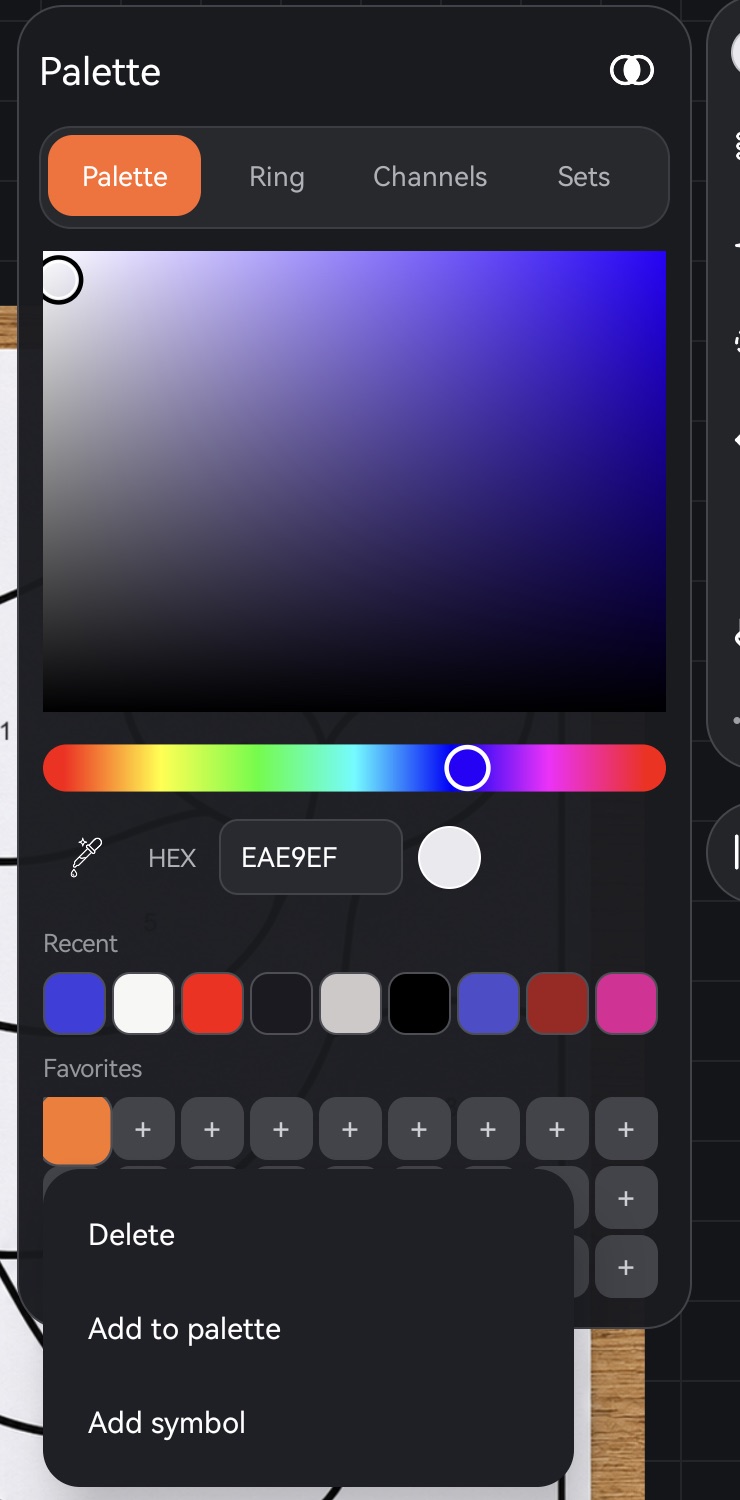
Favorites are three rows of nine cells for colors you use all the time.
- An empty cell shows +. Tap it to put the current color there.
- Touch and hold a color, then drag – it moves to another cell.
- Touch and hold a color and release without moving – a menu opens: Delete, Add to palette, Add symbol.
A symbol is a number or sign of up to three characters, shown right in the cell – handy for color-by-number pages where each color has a number. A cell with a symbol offers Change symbol and Delete symbol instead.
One of your palettes from Sets can sit above Favorites – the one marked with a star. See My palettes.
Color-by-number colors
When a color-by-number page is open, there's a Color by number row above Recent: the page's colors in order, with the number inside each circle. Tap a circle to use its color.
Touch and hold a circle for Fill all areas numbered N – every area with that number gets its color in one step; areas you've already painted by hand are left alone. See Color by number.
Squares or circles
Colors in the palette are shown as rounded squares. To switch to circles, open Settings → the Misc tab → Palette look → Circle.
Color switcher
At the bottom of the left toolbar there are two circles: the last color you painted with and the one before it. Tap the big circle to make its color active; tap the small circle or the swap icon to swap the two.