
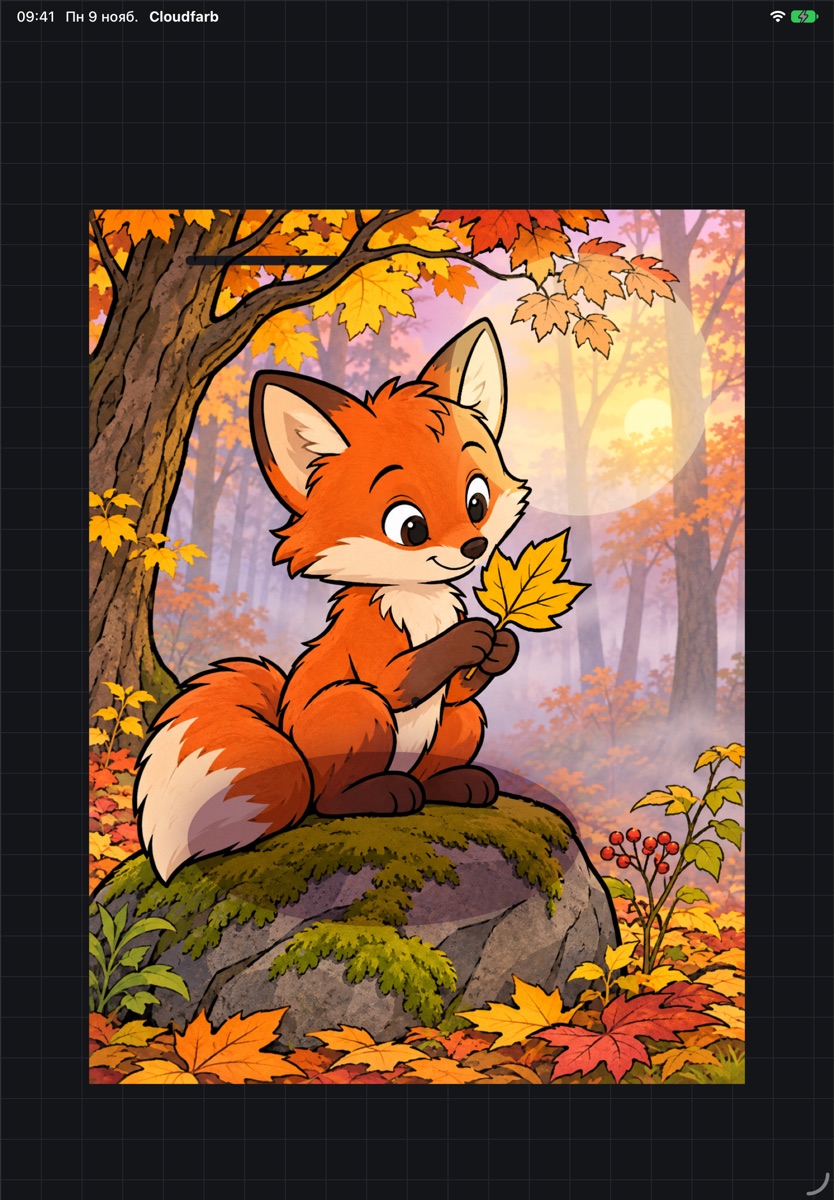
The generator turns your picture or photo into a coloring page: it splits it into areas, puts a color number in each one and picks a palette. You can save the result as two images or open it on the canvas right away. Everything is calculated on your device.
Make a coloring page
- Open the Tools tab and tap Color by number.
- Tap Choose image and pick a picture. You can swap it later with Replace picture.
- Choose the settings (see below).
- Tap Create coloring page. While it works you'll see “Building the coloring page” with a progress bar; tap Cancel to stop.
Settings
- Detail – Low, Medium or High. This is the size of the areas: less detail means bigger areas. Medium is the default.
- How to read the picture – Flat colors (default) for drawings with clean solid patches, or Photo for photos and pictures with smooth transitions.
- Numbers and palette – turn it off for a plain outline coloring page.
- Fill very small areas that can't fit a color number – such areas come already colored. On by default.
You don't choose the number of colors: the palette is picked automatically from the picture.
Save or start painting
When it's done, the Save or start painting screen shows two sheets: the reference (how the colors changed) and the coloring page with its palette. Tap a sheet to see it full screen – pinch to zoom in.
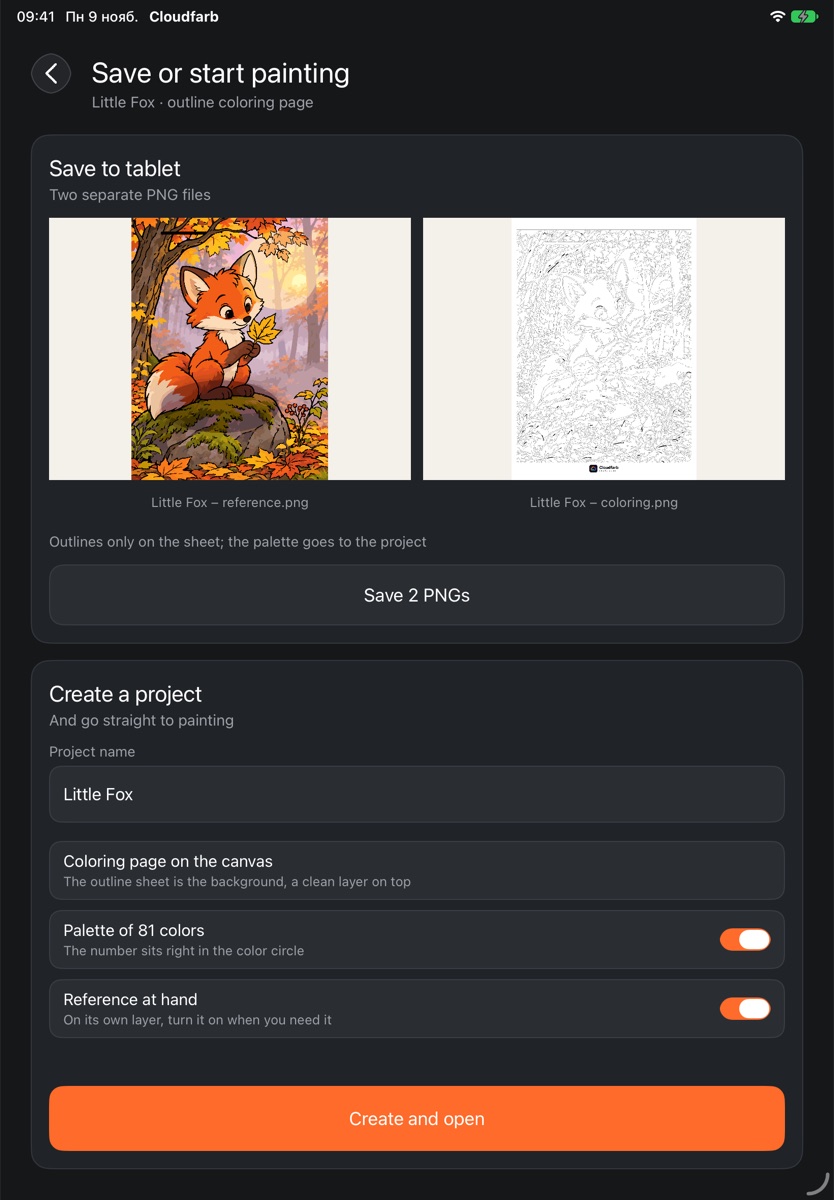
- Save 2 PNGs – both sheets are saved as separate files to your device photos.
- Create a project – enter a Project name and choose what goes into the artwork:
- Palette of N colors – the page's palette goes into the artwork's palette panel;
- Reference at hand – the reference on its own layer, turn it on when you need it.
Then tap Create and open.
How to color
The new artwork has three layers: Coloring page – the sheet with outlines and numbers as the background, Paint – a clean layer above it (the brush is already there), and a hidden Reference on top if you kept it.
The page's palette is in the palette panel under Color by number, with the number right inside each color circle. Tap a circle to pick that color.
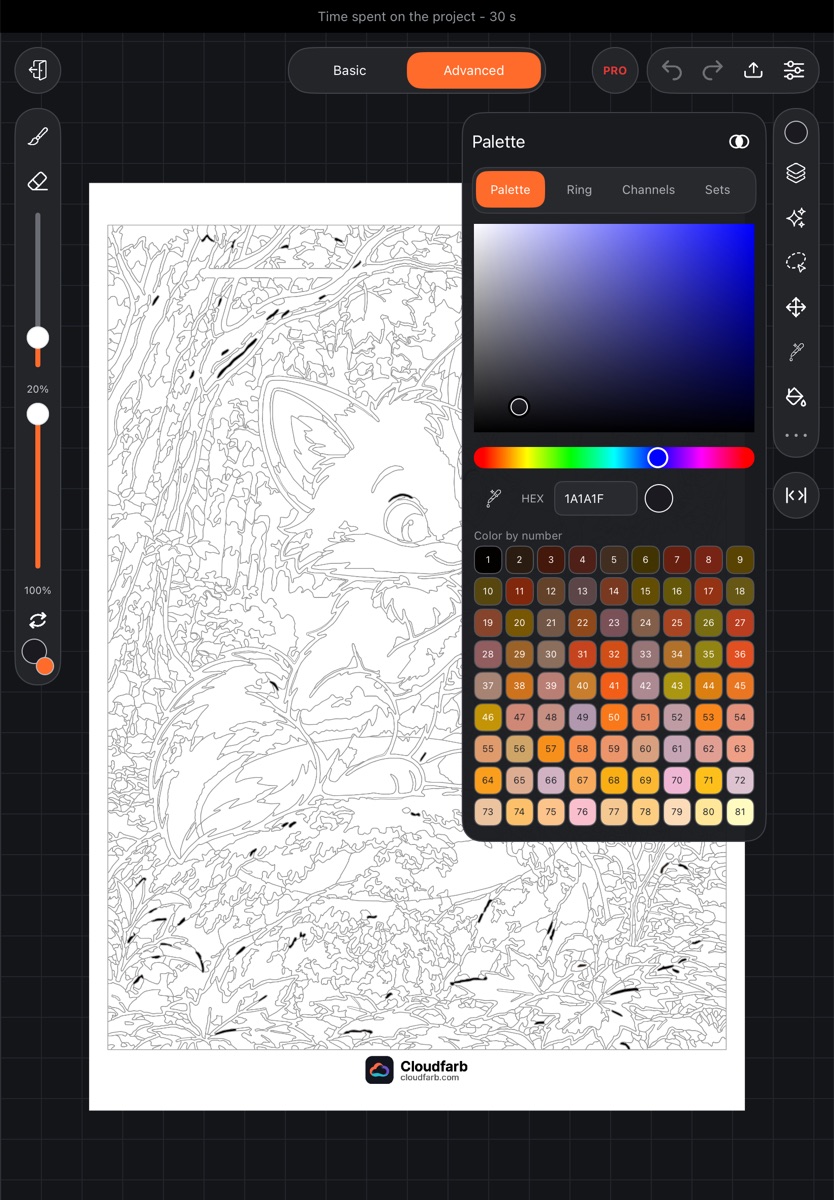
The regular fill and the color drop work for coloring as well – see Fill and Drop fill.
A coloring page from your own artwork
You can turn a finished drawing into a coloring page too. In the editor open Settings, the Canvas tab, and tap Make a coloring page (marked PRO). The artwork is flattened into one picture and opens in the generator with numbers turned off, so you get an outline sheet. You can turn the numbers back on before you start.
Ready-made pages
No picture of your own? Take a ready-made color-by-number page from the Catalog tab – see Coloring pages from PDF and the catalog. A paper coloring page with a color chart can be brought into the app as a palette – see Palette scanner.