
Drop fill is a quick way to fill an area straight from the color – no switching to the Fill tool and back to the brush.
Filling an area
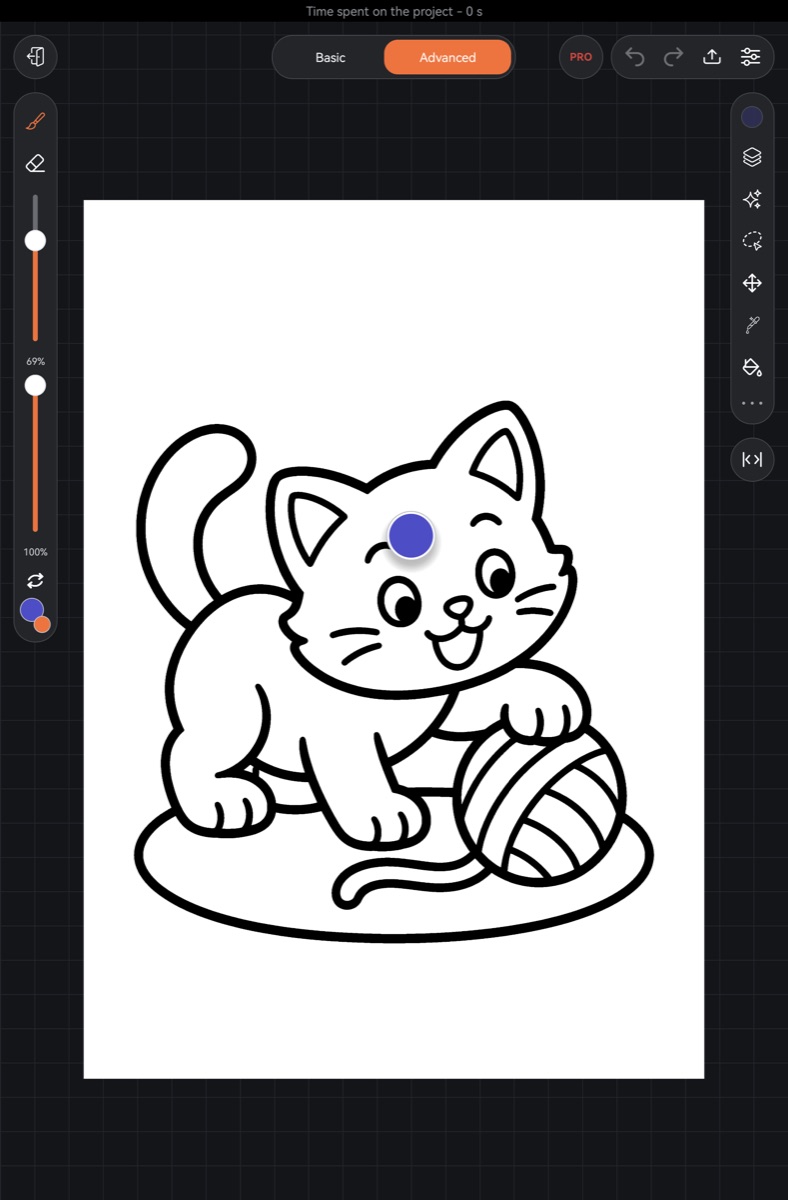
- Touch and hold the active color circle on the toolbar (on a tablet, at the top of the right toolbar). After about a third of a second a drop of color lifts off it, and the circle fades.
- Without lifting your finger, carry the drop onto the canvas.
- Release it over the area you want to fill.
The drop spreads out, and the closed area under the point where you let go is filled with the color.
Filling everything around shapes
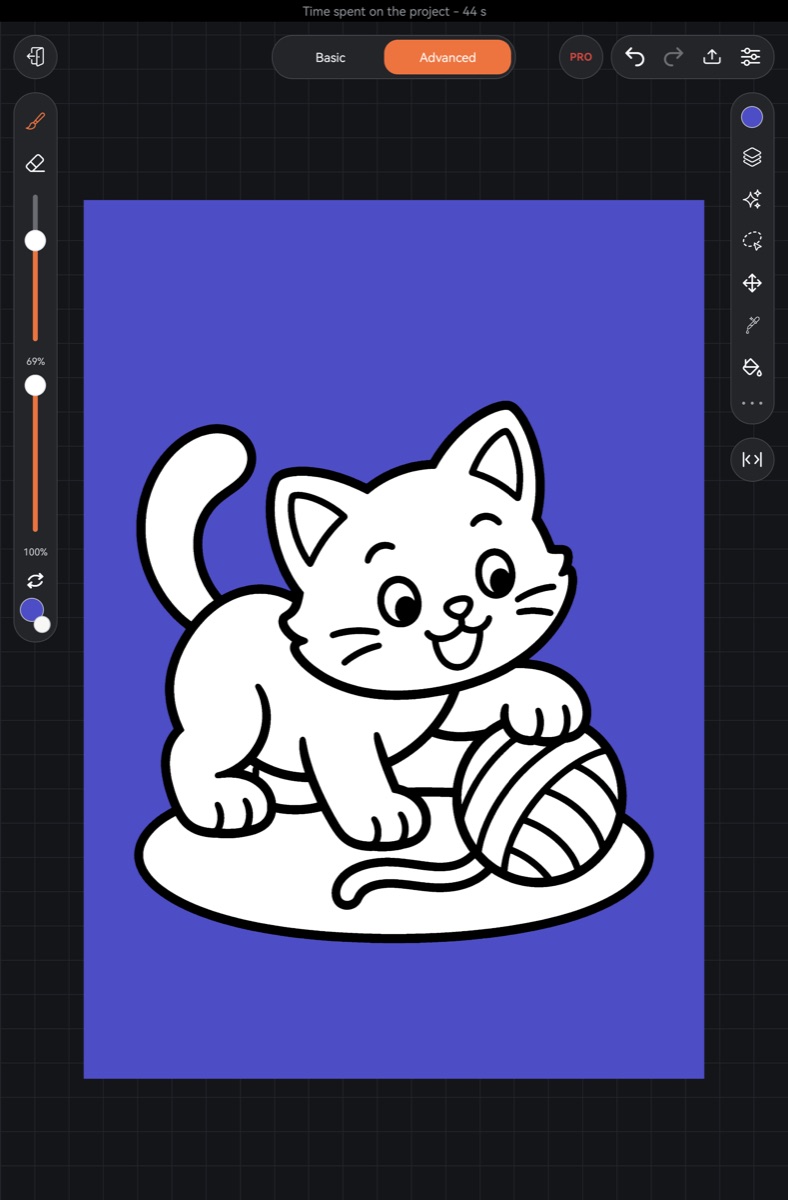
Lift the drop and flick it quickly toward the canvas. Everything outside closed shapes – the background around your drawing – gets filled, while the insides of closed outlines are left alone.
On a transparent layer the paint goes "under the drawing": the soft edges of the lines stay on top, with no light fringe.
Changed your mind?
Release the drop away from the canvas – over a toolbar or a panel. It flies back into the circle and nothing changes.
If you move your finger before the drop lifts, nothing happens. A short tap on the circle without holding opens the palette, as usual.
Good to know
- The drop fills the same way as the Fill tool: with its tolerance, expand, smoothing and fill style. You set them in the Fill panel – see Fill.
- The fill goes into the active layer and looks only at that layer's drawing. If the lines are on one layer and you're on another, empty one, the drop fills that whole layer.
- The drop won't fill a hidden or locked layer or a group – you'll see a message, just as when painting with a brush.
- A fill is a single step, so you can undo it.