Export saves your artwork as a file you can send, post or open in another program. The artwork in the gallery doesn't change. Exporting is free.
How to export
- Open the artwork.
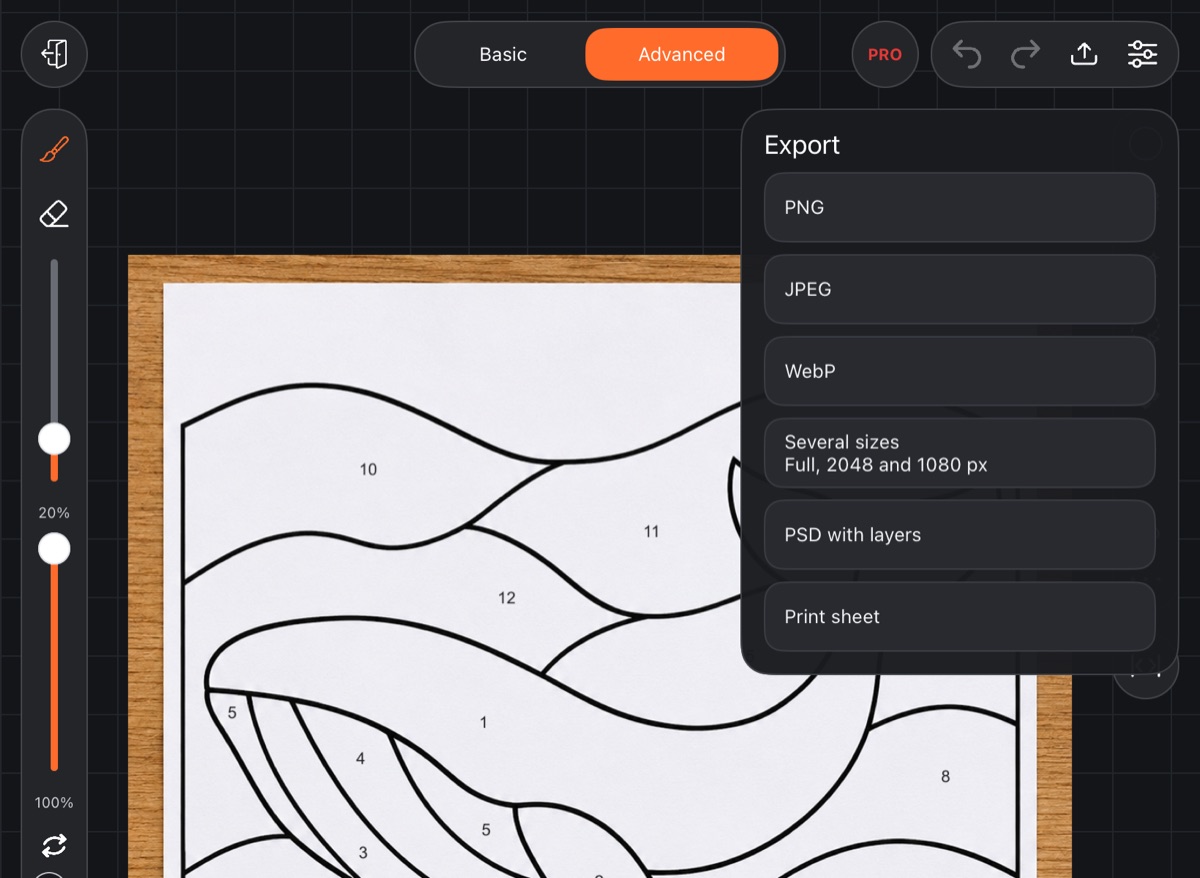
- At the top, tap Export – the button between the undo arrows and Settings.
- Choose a format.
Formats
- PNG – lossless, keeps transparency.
- JPEG – a smaller file without transparency. Good for photos and social media.
- WebP – lossless like PNG but smaller; keeps transparency.
- Several sizes – full size plus 2048 and 1080 px on the long side, in one tap. Pick PNG, JPEG or WebP. Sizes larger than the canvas itself are skipped: a canvas under 2048 px gives two files, under 1080 px – one.
- PSD with layers – a file with all layers, groups, masks and blend modes. You can open it in another editor or import it back into Cloudfarb (see Import).
- Print sheet – a PDF for printing (see below).
Pictures are saved at the full canvas size. The file name is the artwork title plus a time stamp.
Where the file goes
Android. The file is saved right away, no questions asked:
- PNG, JPEG, WebP and Several sizes go to Pictures/Cloudfarb. The pictures show up in your device's photo gallery and in other apps.
- PSD goes to Download/Cloudfarb, where file managers and other editors can see it.
A message at the bottom confirms it, for example “Saved: Pictures/Cloudfarb/…”.
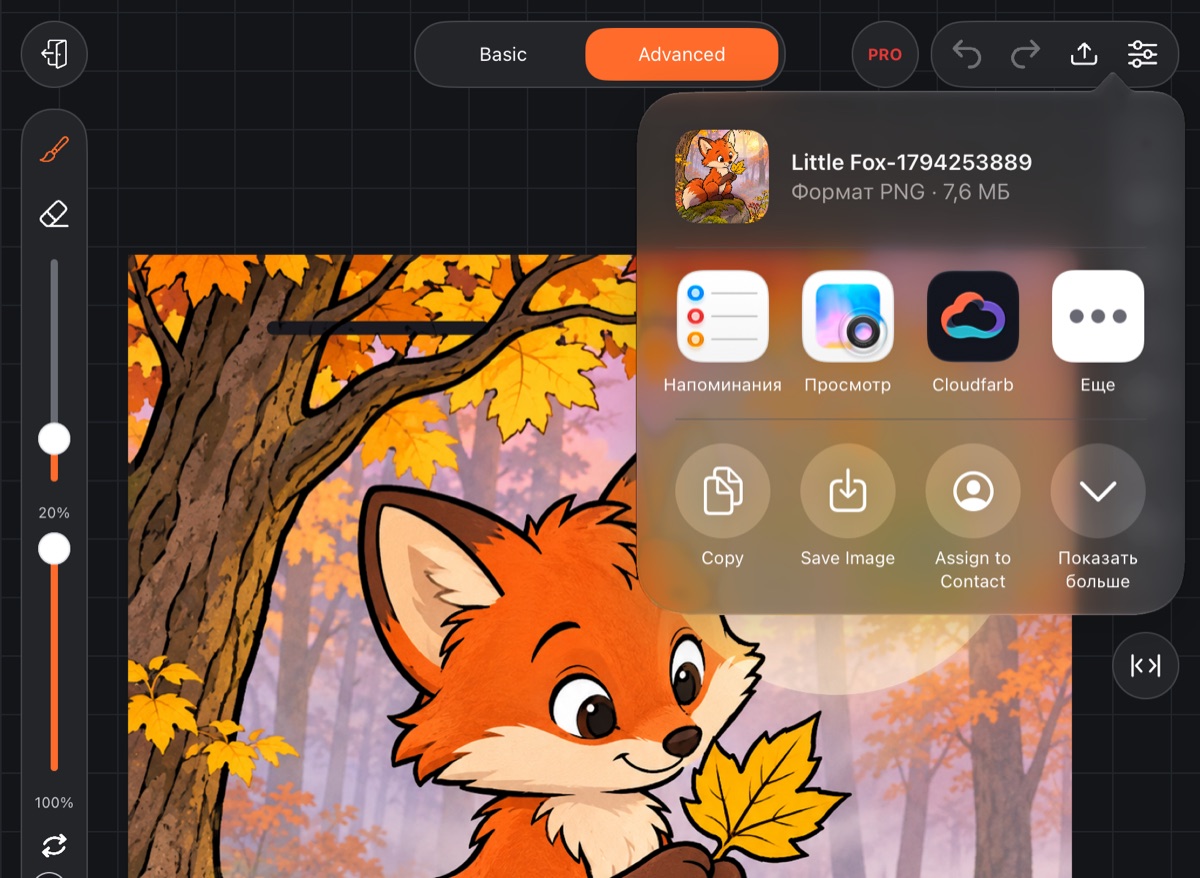
iPad and iPhone. The system share sheet opens. Choose what to do with the file: save the image to Photos, save it to Files, or send it straight to another app. Several sizes arrive in the share sheet as all files at once.
Print sheet
Print sheet builds a PDF and hands it to the system print dialog. Options:
- A4 – whole work, A5 – whole work – the full artwork on the sheet;
- A4 – blank sheet, A5 – blank sheet – only the bottom layer, for example a coloring page outline without your fill.
Timelapse and animation
The video of your drawing process is saved from the timelapse viewer – see Timelapse. Frame-by-frame animation is covered in Animation.
Backing up your whole library
To save all your artworks at once, make a library backup:
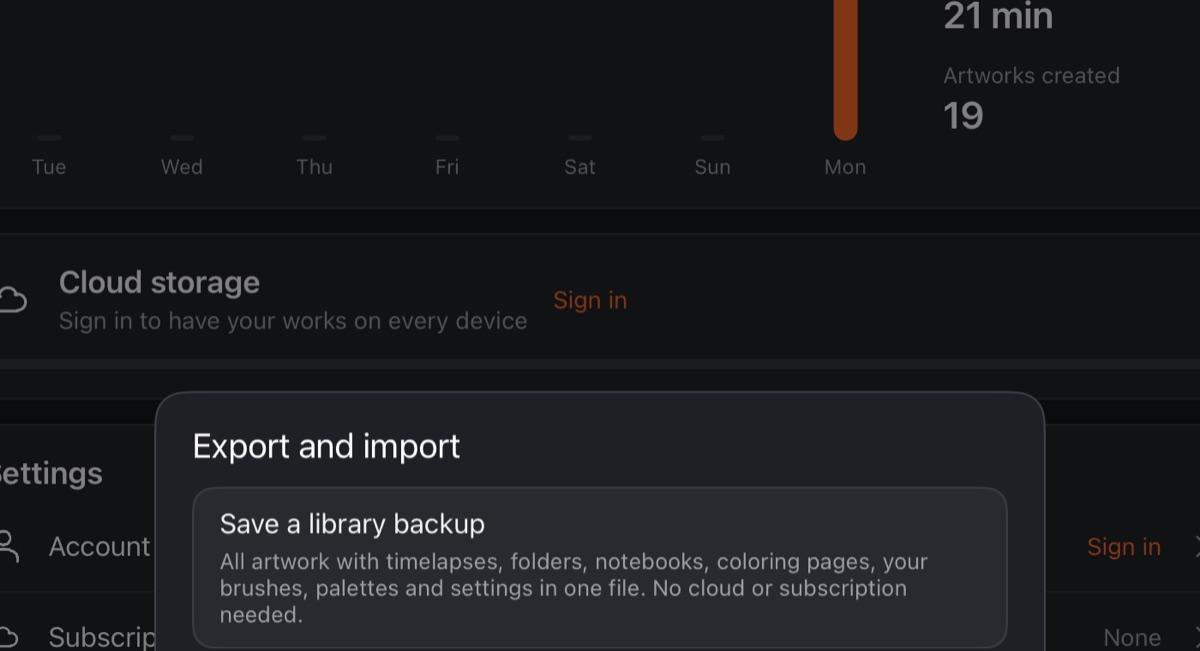
- Open the Profile tab and tap Export and import.
- Tap Save a library backup and choose where to save the file.
The backup holds all artwork with timelapses, folders, notebooks, coloring pages, your own brushes, palettes and settings – in one file. No subscription or cloud is needed.
Restore from a backup adds the artwork from the file to yours; what you already have is left as is. An Android backup can be restored on iPad and iPhone, and vice versa.