
The cloud keeps a copy of your artworks and their earlier versions. If you change or lose your tablet, sign in on the new one and everything is there.
Turning it on
- Sign in – see Account and profile.
- Subscribe to PRO – see PRO subscription.
- Open the Profile tab and turn on the switch in the Cloud storage card.
If you aren't signed in, the card shows Sign in instead of the switch; without a subscription it shows Subscription.
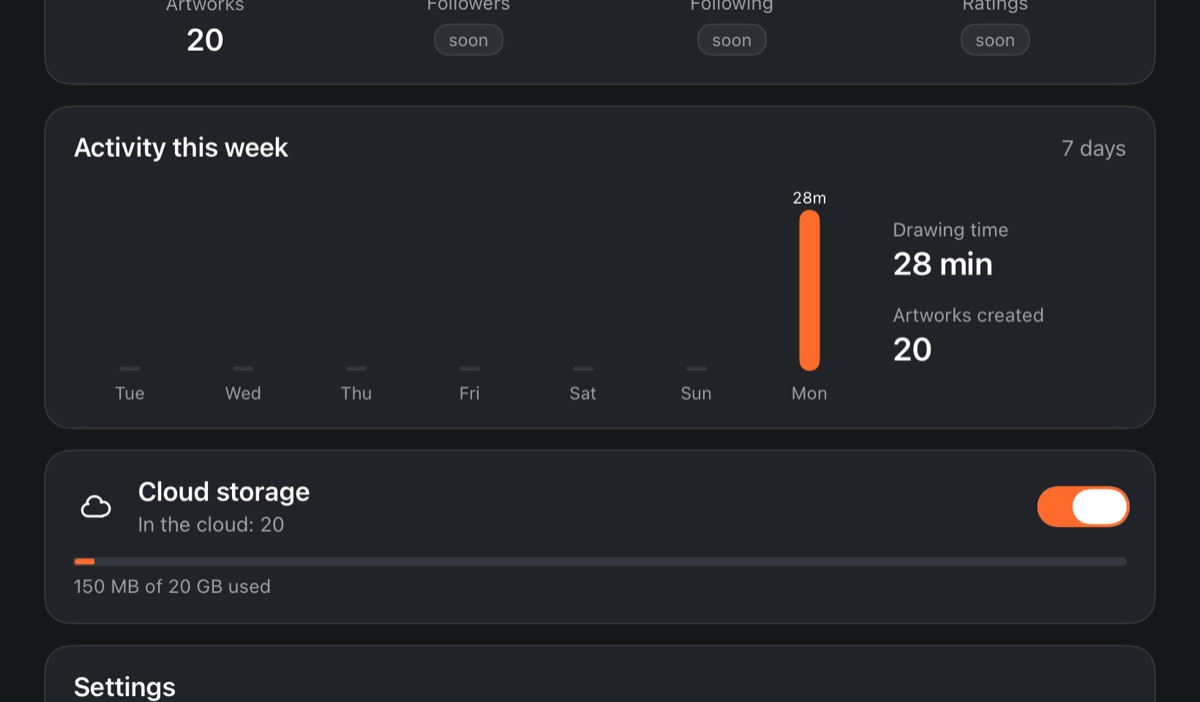
Once it's on, all artworks in the gallery are queued and uploaded, and works that are already in the cloud are downloaded to the device.
What goes into the cloud
- artworks with all their layers – each with its own version history;
- gallery folders, Favorites, titles and card order;
- notebooks with stickers, and Progress;
- your own brushes, palettes and avatar;
- brush, palette, gallery and editor settings – except those tied to a particular device.
Timelapses and the trash are not uploaded.
How syncing works
- When you close an artwork and go back to the gallery, its new version goes to the cloud.
- When the app starts and whenever you return to the gallery, the queue is sent and anything new is downloaded.
- The artwork that's open right now isn't touched – it updates after you close it.
- Only the changed parts of an artwork are uploaded, so even a large work goes up quickly.
While uploading or downloading, a “Syncing with the cloud” bar appears above the gallery's bottom tabs: how many works are uploaded or downloaded and roughly how long is left. The profile card shows the summary: “In the cloud: N” or “No connection – N waiting”. Without a connection everything waits and goes up once you're back online.

Moving to another device
An account works on one device at a time.
- On the new device, sign in to the same account. If it's open on the old one, tap ✕ Sign out next to the old device.
- Turn on the cloud in your profile.
- Your artworks, folders, notebooks and Progress download on their own.
Nothing is deleted from the old device.
Version history
Every artwork that's already in the cloud has a History.
- In the gallery, press and hold the artwork card.
- Tap the History button.
- The list shows versions with thumbnails and dates, newest first; the current one is marked “Now”.
- Tap As copy next to the version you want.
The old version appears in the gallery as a separate artwork with the date in its title, and the current one stays as it is.
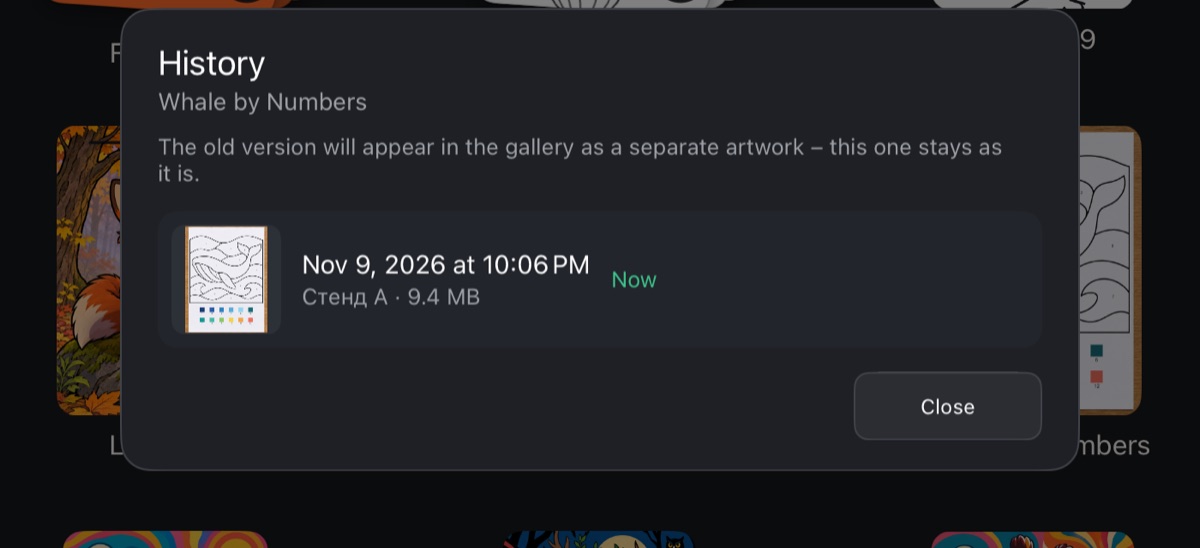
A new version is saved every time the artwork is uploaded. The cloud keeps every version from the last 30 days, and one per month for anything older.
Deleting and the trash
- Move to the trash – the work leaves the cloud immediately and stays in the device's trash for 30 days. Each device has its own trash, and it isn't uploaded.
- Restore from trash – the work is uploaded to the cloud again as a new work.
- Deleted on another device – the work stays here, and the app asks what to do with it: Put back in the cloud, Move to trash or Keep only on this device.
If a work was edited on two devices
If the same artwork was changed both here and on another device while offline, nothing is merged and nothing is lost: both are kept. The change made here is uploaded as a copy with the device name in brackets, and the cloud version is downloaded next to it.
Cloud storage space
PRO includes 20 GB. You can see how much is used in the Cloud storage card (“… of 20 GB used”) and in the Subscription window. When the space runs out, new changes stop uploading, but everything keeps saving on your device.
Turning the cloud off
Turn off the switch in the Cloud storage card. Your artworks stay both on the device and in the cloud – they just stop syncing.
When a subscription ends, the cloud stops syncing too. The cloud is kept for a while – the date is shown in the Subscription window – and then deleted. Artwork on your device always stays.