
Range selects by content rather than with a frame: all the dark areas, all the light ones, or everything close to a given color. You then edit the selection with color grading, effects or the brush, and the rest stays as it is.
Make a selection
- Tap the round PRO button at the top of the screen and choose Range.
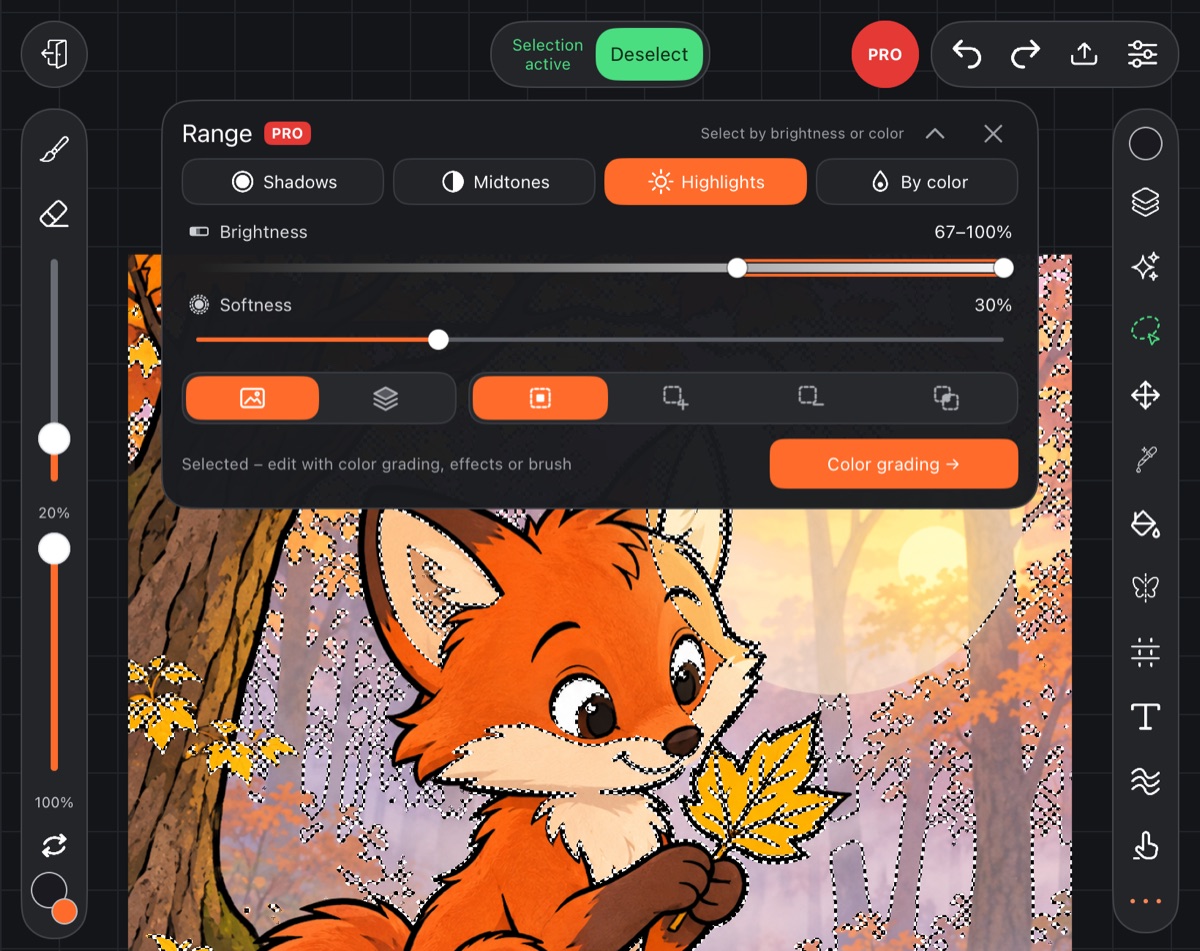
- Choose what to select: Shadows, Midtones, Highlights or By color. Until you choose, nothing is selected – the panel says “Choose what to select”.
- Adjust the sliders – the selection updates on the canvas.
- The bottom of the panel shows “Selected – edit with color grading, effects or brush” or “Nothing falls into the range”.
By brightness
Shadows, Midtones and Highlights are preset thirds of the brightness scale. For exact limits, use the Brightness bar with two thumbs: the left one sets where the range starts, the right one where it ends. The value next to it reads, for example, “67–100%”.
By color
- Choose By color.
- The brush color is used by default. To take a color straight from the picture, tap the eyedropper next to the color circle and tap the canvas where that color is.
- Tolerance – how far a shade can be from the color and still be selected.
Common settings
- Softness – how soft the edge of the selection is.
- Where to look: Whole picture (what you see) or Layer (the active layer only).
- How to combine with the selection you already had: Replace, Add, Subtract, Intersect.
While the panel is open, the sliders move the selection live, starting from what was selected when you opened it.
What next
- The Color grading → button opens Color grading right away, working on the selection.
- Or close the panel: the selection stays, and you can edit it with effects, the brush or other tools. “Selection active” and a Deselect button appear at the top.
Range doesn't work on a vector layer. For other ways to select, see Selection.