
You can bring brushes over from other apps and share your own brushes. Import works the same way on Android and on iPad/iPhone.
Supported files
- .abr – brush sets;
- .brushset – brush sets, and .brush – a single brush in the same format;
- .cfbrush – a Cloudfarb brush, such as one you saved or a friend sent you.
How to import
- Open the brush library: tap Brush, then Brush again.
- In the Brushes header, tap the round Import button.
- Choose the file. The file picker highlights only brush files.

While the file is being read, a progress window is shown. A large set can take a while – wait until it finishes.
Where the brushes go
A set (.abr, .brushset, .brush) goes onto a new shelf. When the import is done you'll see "Brushes imported: N – shelf “…”", and the library opens on that shelf.
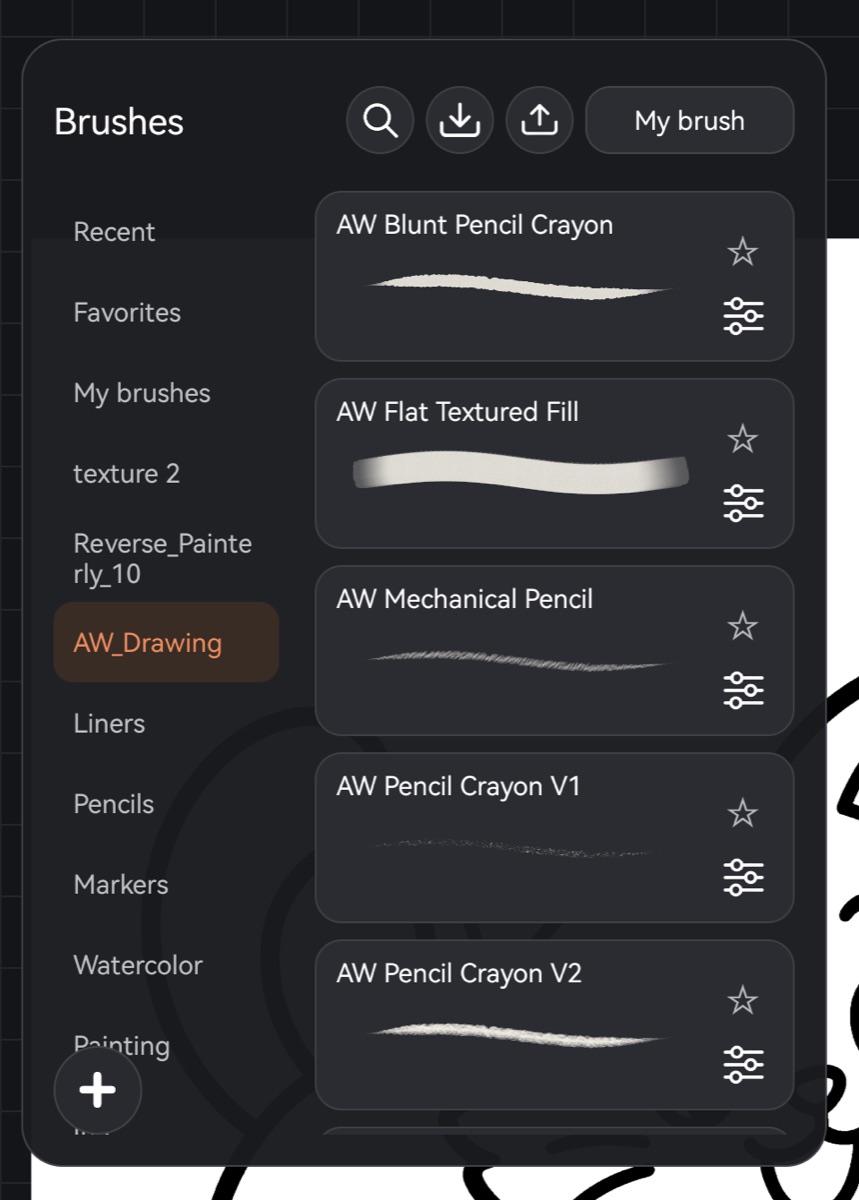
If some brushes couldn't be read, the message says "Brushes imported: N, not read: M". The rest of the set works as usual.
A single .cfbrush brush goes to My brushes and becomes the current brush right away.
A brush from a set starts at its own size – the one stored in the original file. If you import the same set again, the remembered sizes of its brushes reset to the originals.
If a brush in a set relies on a built-in shape or texture of another app, that image isn't in the file, and Cloudfarb substitutes a similar one of its own. So a few brushes may draw slightly differently than in the original app. You can fine-tune them in Brush settings.
If it didn't work
- "The .abr file wasn't read" or "The brush set wasn't read" – the file is damaged or isn't a brush file. Try downloading it again.
- "Brush not imported: the file isn't a .cfbrush" – you picked a different kind of file. Sets need the .abr, .brushset or .brush extension.
Imported shelves
An imported shelf behaves like one of your own: hold its name to get Rename, Copy, Delete. Deleting a shelf deletes all its brushes too. See Brushes: the basics.
Saving your brush to a file
- Select the brush you want to save.
- In the Brushes header, tap Export.
- On Android, choose where to save the file. On iPad/iPhone the share sheet opens – save the file to Files or send it.
The brush is saved as a .cfbrush file with its name. You can import it on another device just like a set.