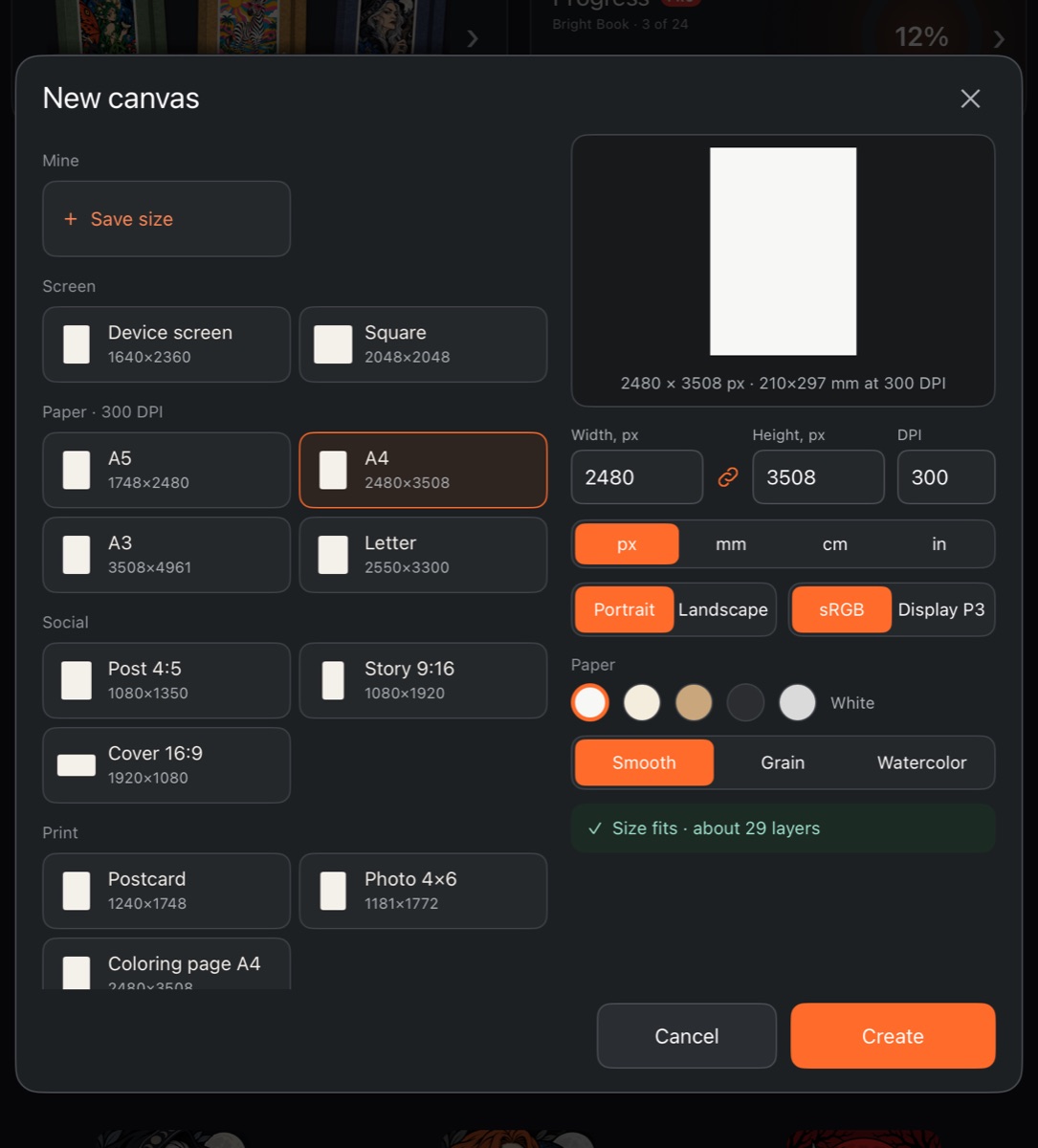
You create a new canvas from the gallery. The window tells you right away whether the canvas fits in your device's memory and roughly how many layers it can hold.
Creating a canvas
- In the gallery, tap New canvas.
- Pick a ready-made size or enter your own. On a tablet the size list is on the left and the settings on the right; on a phone everything is in one column – sizes first, settings below.
- Tap Create.
The window always opens with an A4 sheet (2480 × 3508 px at 300 DPI), portrait, on smooth white paper. The new work appears in the gallery as “Canvas 1”, “Canvas 2” and so on – press and hold its card to rename it.
Ready-made sizes
- Screen – Device screen (your screen's size) and Square 2048 × 2048.
- Paper · 300 DPI – A5, A4, A3, Letter.
- Social – Post 4:5, Story 9:16, Cover 16:9.
- Print – Postcard, Photo 4×6, Coloring page A4.
Custom size
- Width and Height – in the units chosen below: px, mm, cm or in. Your choice of units is remembered.
- The chain icon (Lock proportions) – when you change one side, the other follows.
- DPI – print density, from 1 to 2400. In mm, cm and inches the size on paper stays the same and the pixel count changes.
- Portrait / Landscape – swaps the sides.
- sRGB / Display P3 – the color space. This switch only appears if your screen can show a wide color gamut.
The line under the sheet preview always shows the result: the size in pixels and in millimeters at the chosen DPI.
Paper
- Color: White, Ivory, Kraft, Dark, Transparent.
- Texture: Smooth, Grain, Watercolor.
The sheet preview shows the chosen color and proportions right away.
Saving your own size
- Set the size, DPI, units and paper.
- In the Mine group, tap + Save size.
- Type a name and tap Save.
Press and hold one of your sizes in Mine to rename or delete it. Works created with that size stay as they are.
Size limits
Each side of the canvas can be from 256 to 4961 px (the long side of A3 at 300 DPI). On top of that, every device has its own area limit, which depends on its memory. A hint at the bottom of the window tells you where you are:
- green “Size fits · about N layers” – all good;
- yellow “Large canvas: fewer layers, drawing may slow down”;
- red “Too large for this device – up to N MP” or “Size from 256 to 4961 px” – the canvas can't be created and Create does nothing.
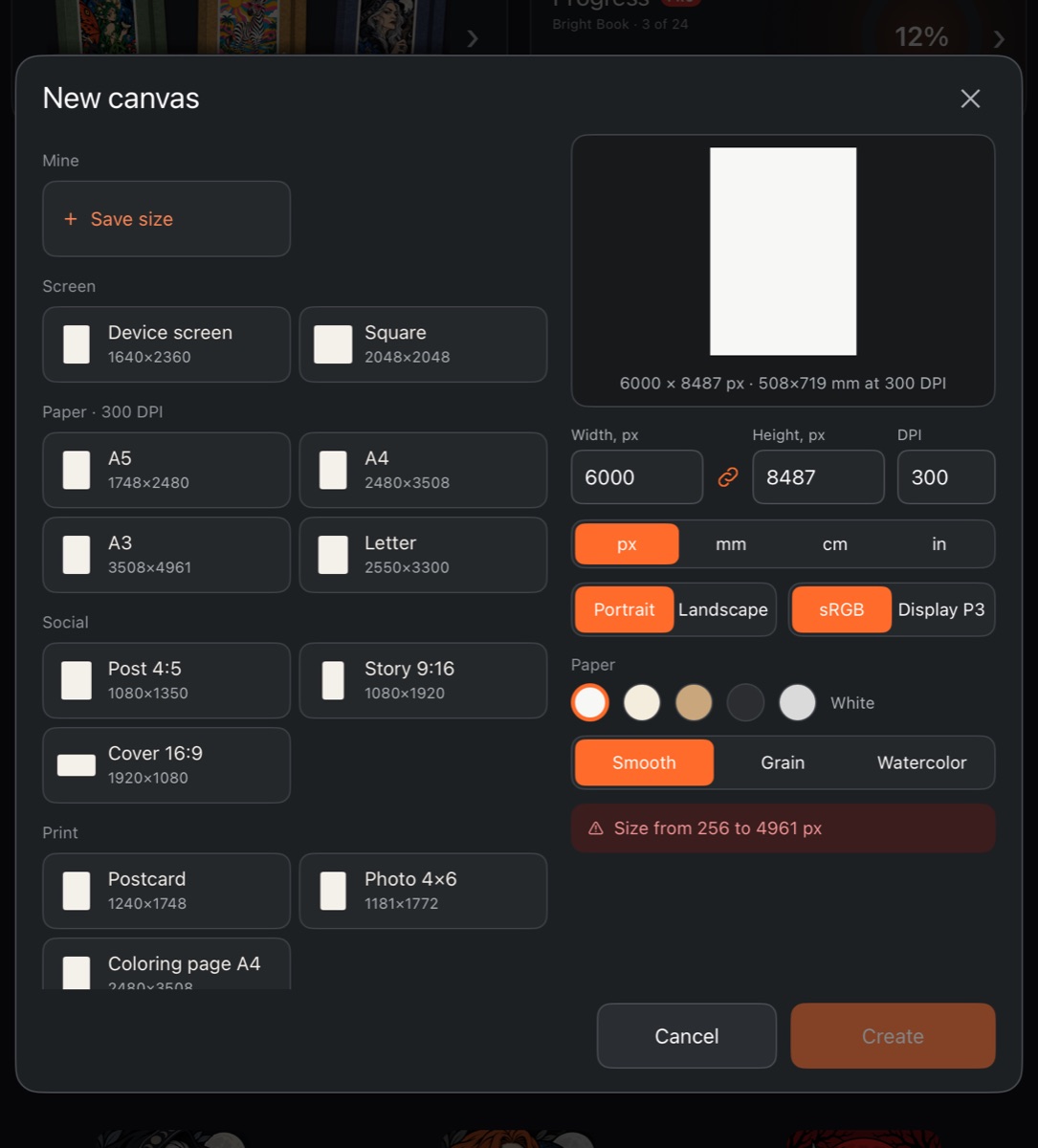
The layer count is approximate: the more pixels the canvas has, the more memory each layer takes.
Resizing an artwork you've started
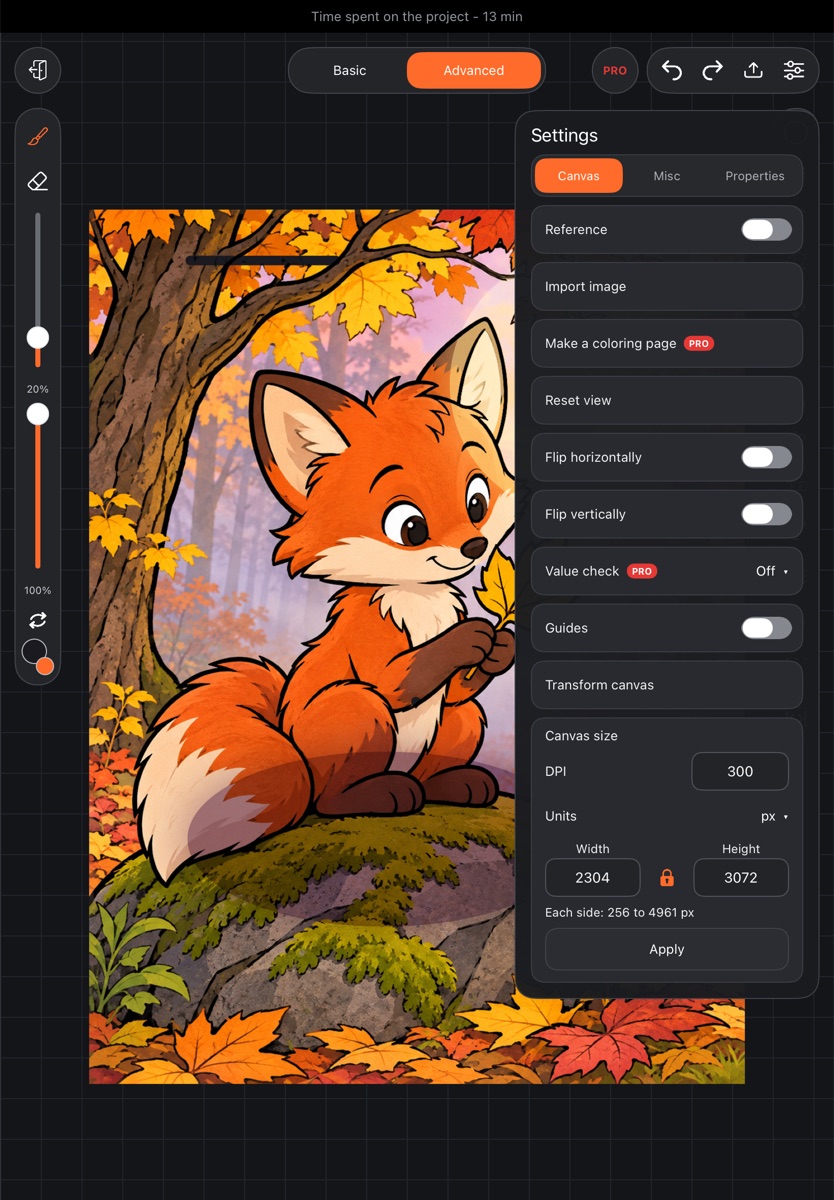
In an open artwork, tap Settings (the gear at the top) and go to the Canvas tab.
Canvas size has the fields DPI, Units, Width, Height and Keep proportions:
- Enter the new values.
- Tap Apply and confirm.
The artwork isn't stretched: it stays centered, anything past the edge is cropped and any new space is empty. If you only change DPI, the pixels stay the same – only the size on paper changes.
Transform canvas does the same with a frame: drag the circles and the canvas grows or is cropped on that side while the artwork stays in place.