
A picture, PSD or PDF becomes a new artwork in the gallery. You can also add a picture as a layer to an artwork that's already open.
Importing from the gallery
- On the main gallery screen, tap Import.
- Choose what to import: - Image – a picture (PNG, JPEG and other formats your device can read); - PSD with layers; - PDF; - From clipboard – this item only appears when there's a picture in the clipboard.
- For Image, choose where to take it from: on Android – From gallery or From Files, on iPad and iPhone – From Photos or From Files.
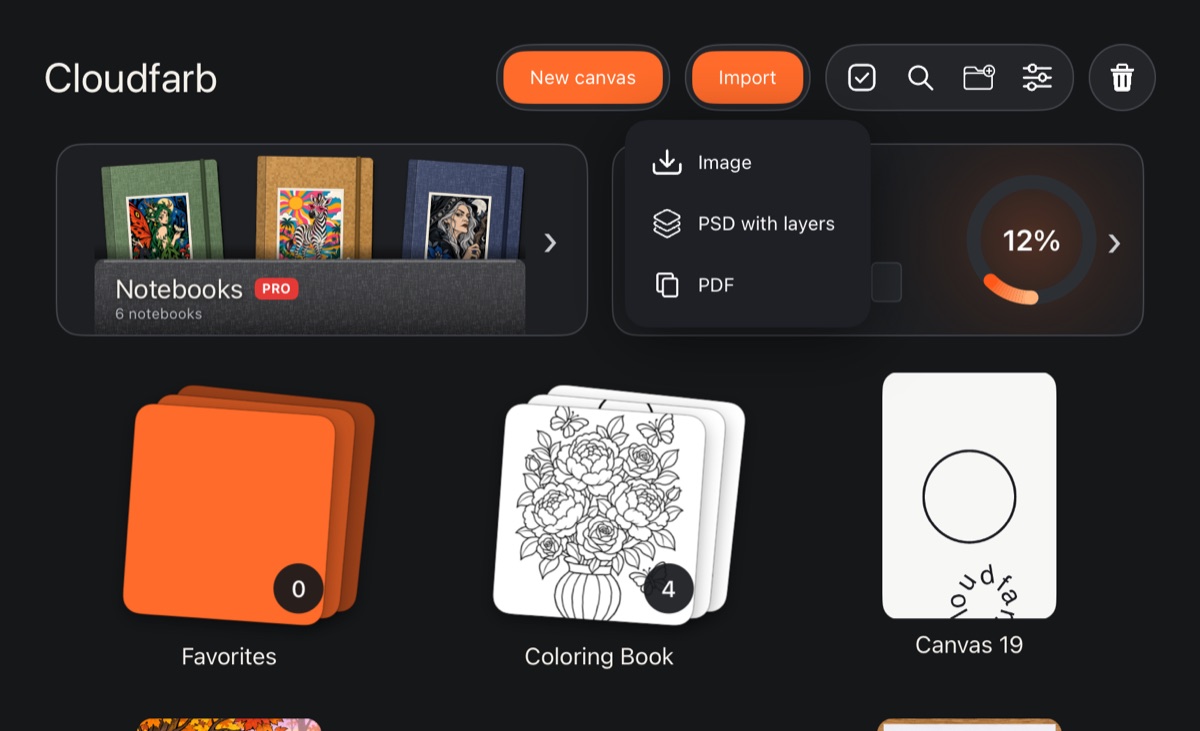
The new artwork is named after the file. A picture from the clipboard is called “From clipboard”. When the import is done, an “Imported” message appears at the bottom.
The Import button is only on the main gallery screen – it isn't shown inside folders.
Pictures
- A picture smaller than an A4 sheet is scaled up to A4 (2480 × 3508 px in the same orientation) – otherwise the brush draws jagged lines on a tiny canvas.
- A picture larger than A4 keeps its size, within the canvas limits: up to 4961 px per side and as much area as your device's memory allows (see New canvas).
- A wide-gamut picture becomes a Display P3 artwork if your screen can show it.
PSD with layers
A PSD opens as a layer tree: groups, layer masks, blend modes, opacity, visibility and layer names are kept. An unknown blend mode is read as Normal – better to show the layer in another mode than to lose it.
While the file is being read, a progress window shows the stages: “Reading file, MB”, “Reading layers”, “Converting colors to Display P3”, “Writing artwork layers”.
- A one-page PDF becomes one artwork.
- A multi-page PDF becomes a folder with a separate artwork for every page.
Pages are drawn at their real size at 300 DPI on a white background; a page smaller than A4 is scaled up to A4. This is handy for coloring pages from a PDF – see Coloring pages from PDF.
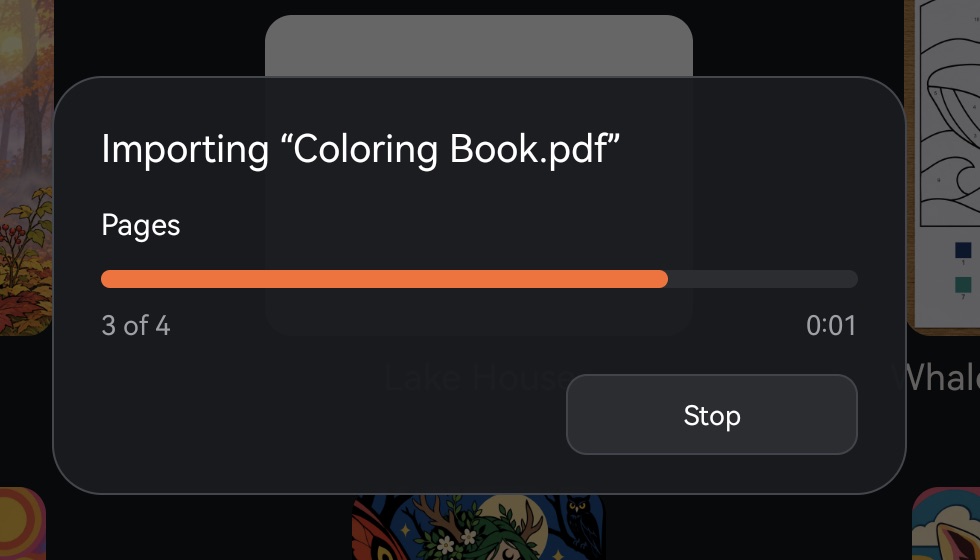
A large PDF takes a while. The progress window shows how many pages are done, and Stop ends the import after the current page – pages that are already done stay as artworks. At the end you'll see “Pages imported: N of M”.
Opening a file from another app
- Android: in another app, choose Share or Open with, then Cloudfarb. Pictures (several at once is fine) and PDF files are accepted.
- iPad and iPhone: open a picture in Cloudfarb from the Files app or through Share.
If a single file arrives, the new artwork opens on the canvas right away. If another artwork was open at that moment, it's saved first.
A picture as a layer in an open artwork
- In an open artwork, tap Settings (the gear at the top).
- On the Canvas tab, tap Import image.
- Choose From gallery (on iPad and iPhone – From Photos) or From Files.
The picture is added as a new layer and Transform opens right away so you can adjust its size and position (see Transform).
An SVG file picked here becomes a vector layer rather than a picture – its paths are edited with the Pen tool.
If something goes wrong
The “Didn't work: …” message gives the reason: “this isn't a picture”, “the file has no pages”, “couldn't read the PDF”, “PSD wasn't read” and others. Check that the file is complete and opens in other apps.