
Text lives on its own text layer and stays editable: you can change the font, size, color and the words themselves at any time.
Adding text
- Tap ••• on the right bar (Advanced mode), then Text.
- Tap the canvas – a text box appears along with the keyboard.
- Type right on the canvas.
- Tap Done. Cancel discards the edit.
New text uses your current paint color.
To edit existing text, open Text and tap it.
The text frame
- Drag inside the frame to move the text.
- The circle on a stem above the top edge rotates it.
- The circle at the middle of the right edge sets the line width the text wraps to.
- The circle below the bottom-right corner scales the text together with its frame.
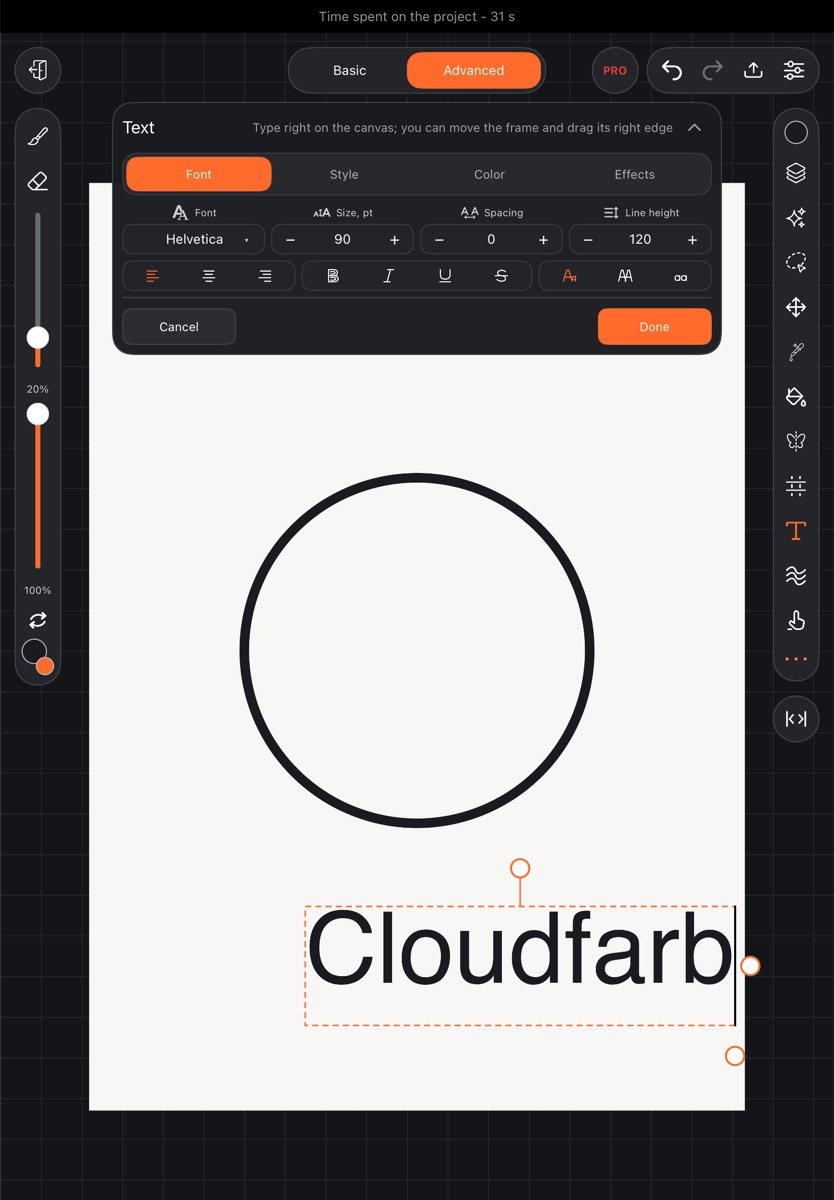
Panel tabs
Styling applies to the whole text.
Font – the font, Size, pt, Spacing, Line height, alignment (Left, Center, Right), Bold, Italic, Underline, Strikethrough, and case: As typed, UPPERCASE, lowercase.
Bold and italic come from the font itself. If the font doesn't have them, you'll be asked to choose another font.
Style – Outline, outline Rounding, Slant, and mirroring: Normal, Mirror, Flip.
Color – Choose color, Opacity, and Gradient with Start and End colors, Gradient angle, and a direction: Across the line or Along the line.
Effects – four tabs:
- Shadow – Blur, Offset sideways, Offset down, shadow color;
- Glow – Halo and glow color;
- Background – a plate behind the text: Padding, Corner rounding, background color;
- Warp – see below.
Text on an arc or a circle
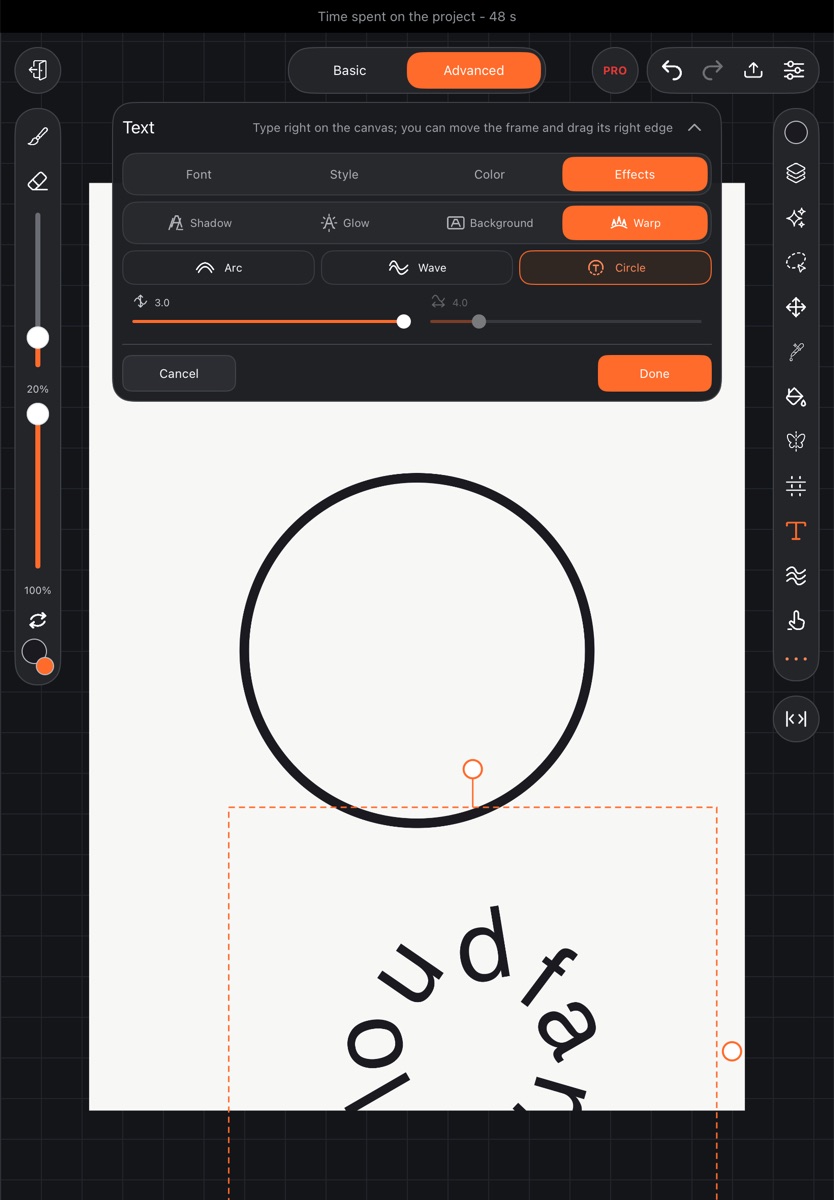
Go to Effects → Warp and choose:
- Arc – the line bends;
- Wave – the line waves; Wavelength sets the spacing;
- Circle – the text closes into a circle.
Bend strength sets how much the line bends, in either direction.
Fonts
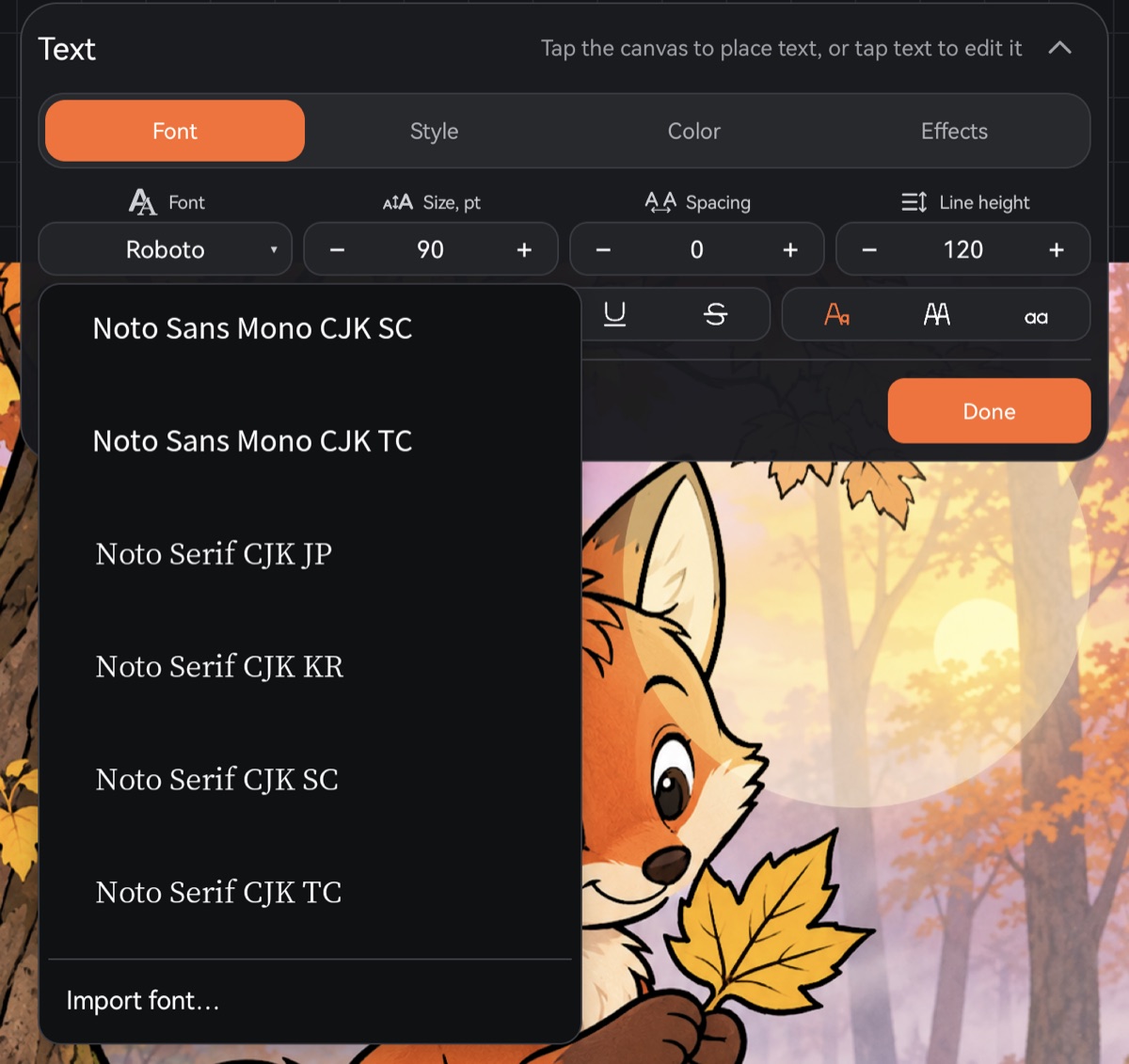
Tap the font name on the Font tab to open the list – each name is shown in its own font. Sections:
- Tablet fonts – fonts on your device that include Cyrillic;
- Chinese and Japanese;
- Latin only – Cyrillic in the default font;
- Imported – your own fonts.
To add a font, tap Import font… at the end of the list and pick a font file (TTF or OTF). The font is saved with the artwork, so the text opens correctly on another device too.
Text layers and other tools
Brushes, the eraser, effects, selection, transform, fill, liquify and other tools don't work on a text layer – you'll see a hint. To paint over text like an image, open the layer menu and tap Rasterize text. The text then becomes a regular drawing and can no longer be edited as text.