
A reference is a window with a picture floating over the canvas – a photo, a sketch or a layer of the same artwork. You can move it around, zoom it and pick colors from it with the eyedropper. It isn't part of the artwork: it's not in exports or the timelapse, it doesn't take up a layer and it's not in the undo history.
Opening the window
- Tap Settings (the gear at the top right).
- On the Canvas tab, turn on Reference.
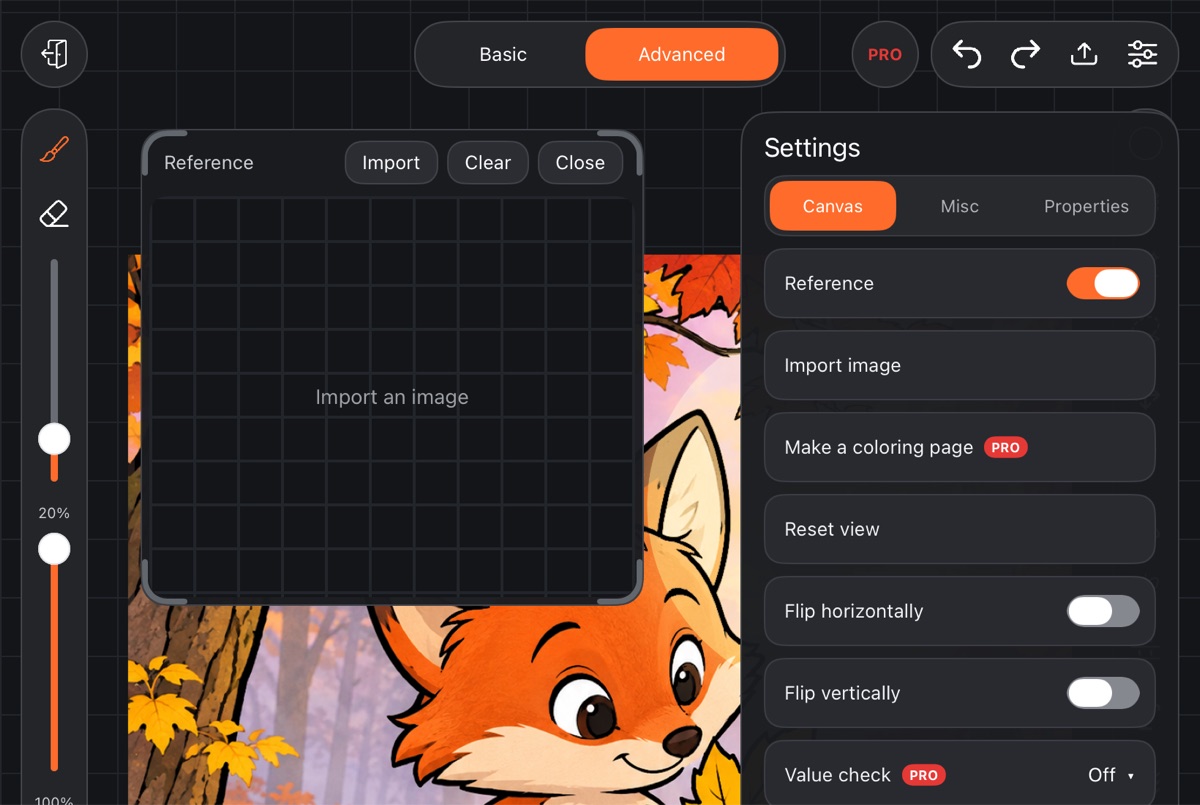
The window appears. Until you add a picture it shows a checkerboard and the hint "Import an image".
Adding a picture
A photo or image from your device:
- Tap Import in the window header.
- Choose From gallery or From Files (on iPad/iPhone – From Photos or From Files).
The picture is copied into the artwork's folder, so the reference opens with the artwork even if you later delete the original file.
A layer of this artwork:
- Open Layers.
- Open the layer's menu and choose Make reference.
The layer's picture shows up in the window; the artwork itself doesn't change. It's a handy way to keep a sketch in view while the layer is hidden. Layer groups don't have this option.
Each artwork has one reference: a new picture replaces the old one.
The window and the picture
- Move the window – drag its header.
- Resize the window – drag an edge or a corner. The window always stays fully on screen.
- Move the picture inside – drag it with a finger.
- Zoom the picture – pinch or spread two fingers on it. Its zoom doesn't depend on the window size.
When the window is narrow, the header buttons turn into icons.
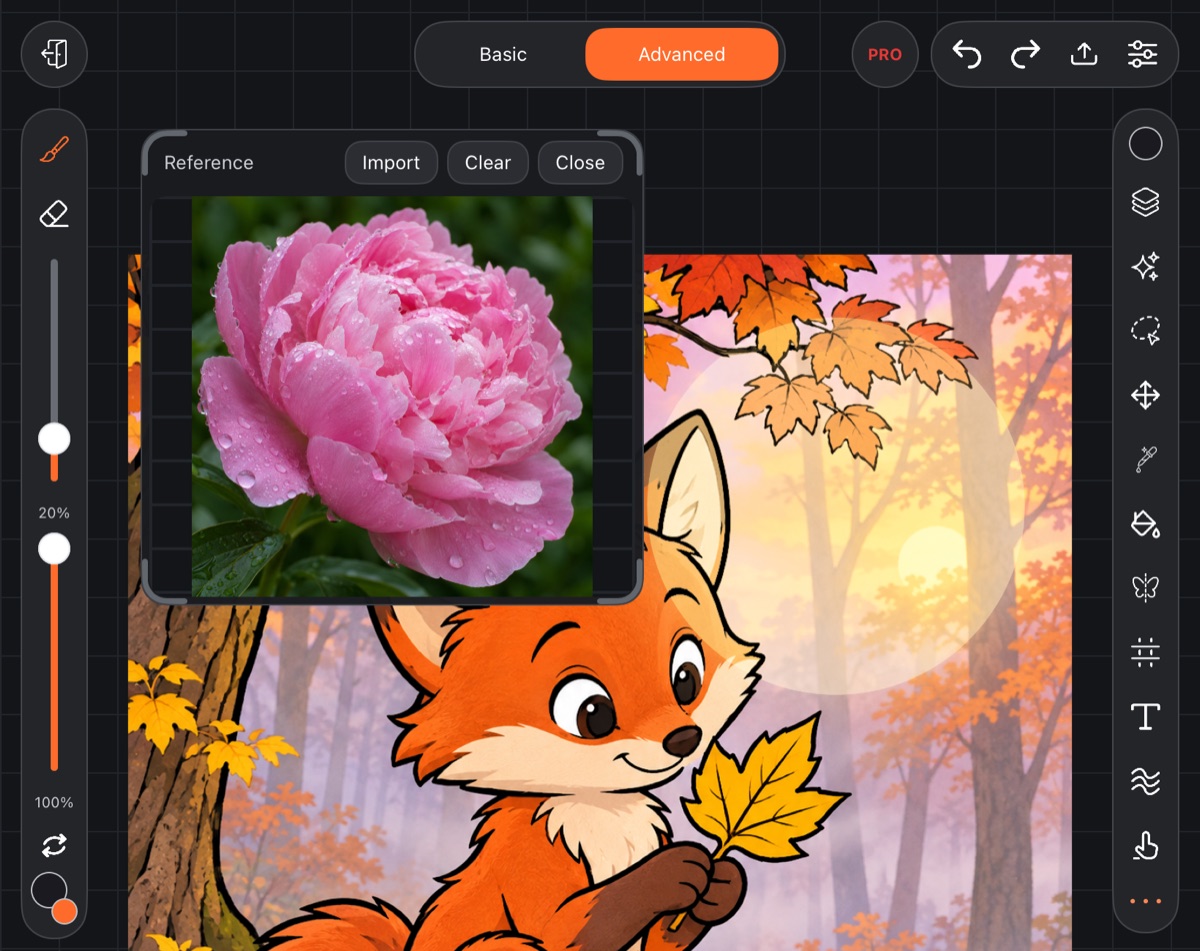
The window's position and size, and the picture's zoom, are saved for each artwork separately.
Header buttons
- Import – load a picture.
- Clear – remove the picture; the window stays, empty.
- Close (✕) – hide the window. The Reference switch in Settings turns off by itself. The picture is kept – turn Reference on again and it's back.
If you didn't close the window, the reference reappears in the same place the next time you open the artwork.
Picking colors from the reference
Turn on the Eyedropper and tap the picture in the window – its color becomes the brush color. You can also drag the eyedropper circle over the picture. See Eyedropper.