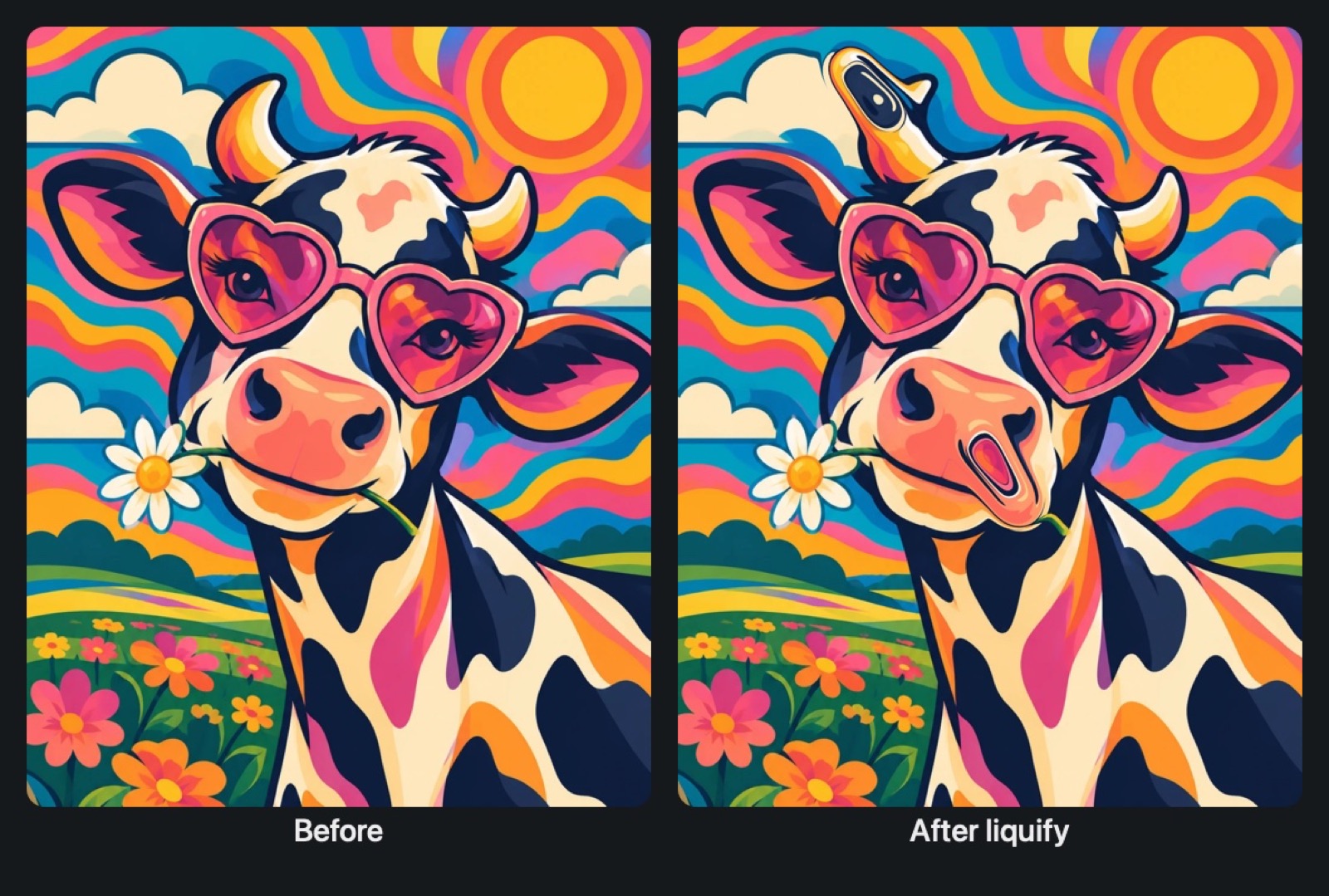
Liquify moves paint that's already on the layer: the drawing flows after your finger or stylus like liquid. It doesn't add any new paint.
Opening the tool
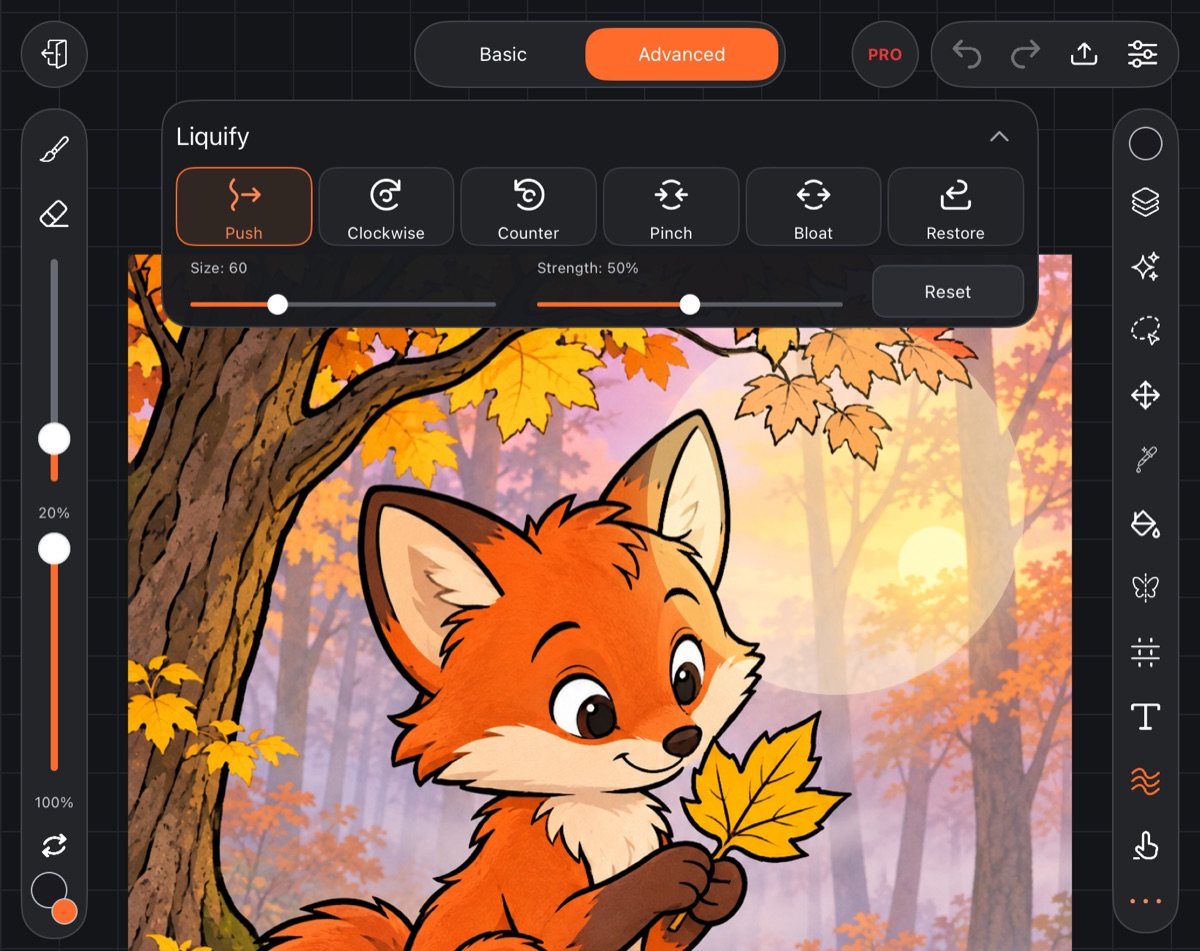
Liquify is under the ••• button on the right bar (Advanced mode). Tap •••, then Liquify.
It works on the current layer. If the layer can't be used, the panel header says "This layer won't work: it's a group, text, hidden or locked".
Modes
- Push – drags the drawing along with your stroke.
- Clockwise and Counterclockwise (the card says Counter) – twirl.
- Pinch – pulls toward the center of the brush.
- Bloat – pushes away from the center.
- Restore – brings back the original drawing where you stroke.
Size and strength
- Size – brush diameter, from 4 to 200. Liquify keeps its own size: it's remembered and doesn't change your brush size.
- Strength – how strongly the drawing flows, in percent.
Applying and resetting
There's no Apply button: everything you've done goes into the layer when you close the panel – tap Liquify again or pick another tool.
Reset discards everything since you opened the panel and starts liquify over.