
Transform moves, scales, rotates and distorts your drawing. Nothing is changed until you tap Apply.
What gets transformed
- With no selection – the whole current layer.
- If several layers are checked in Layers – all of them together, in one frame. The panel header shows how many: "Layers: 3".
- If a group is selected – the layers in it. Hidden, locked and text layers are skipped.
- If there's a selection – only the selected part.
Transform doesn't work on a text layer: text is moved and rotated with its own frame in the Text tool.
How to transform
- Tap Transform on the right bar (Advanced mode).
- A frame appears around the drawing: - drag inside the frame to move (with a stylus you can also drag outside it); - drag a corner to scale; - drag the dot in the middle of a side to stretch that side; - drag the circle on a stem below the bottom edge to rotate.
- Tap Apply. Cancel puts everything back.
The header shows the rotation and scale: "Rotation: 15° Scale: 120%".
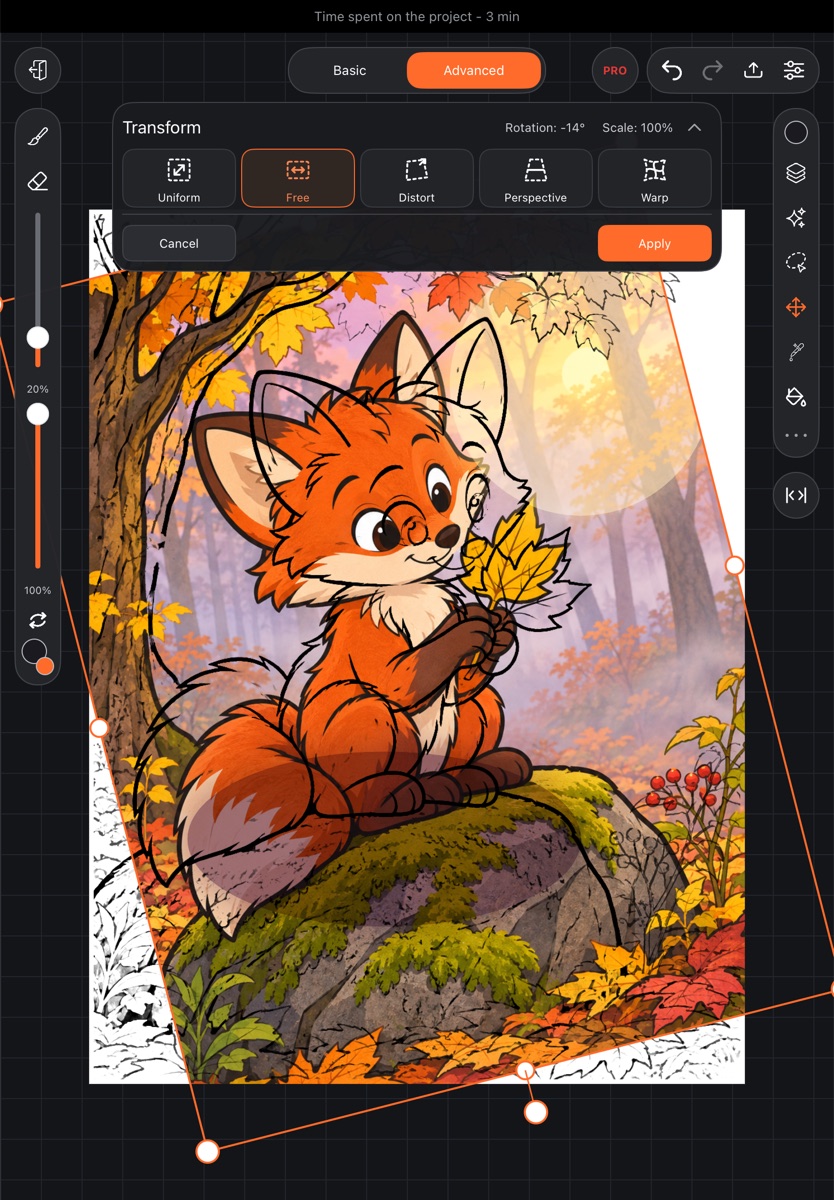
Each time you let go of the frame is a separate step: the undo arrow takes them back one by one until you tap Apply.
Modes
- Uniform – scales without changing proportions.
- Free – width and height change separately.
- Distort – each corner moves on its own.
- Perspective – corners move so the drawing recedes into depth.
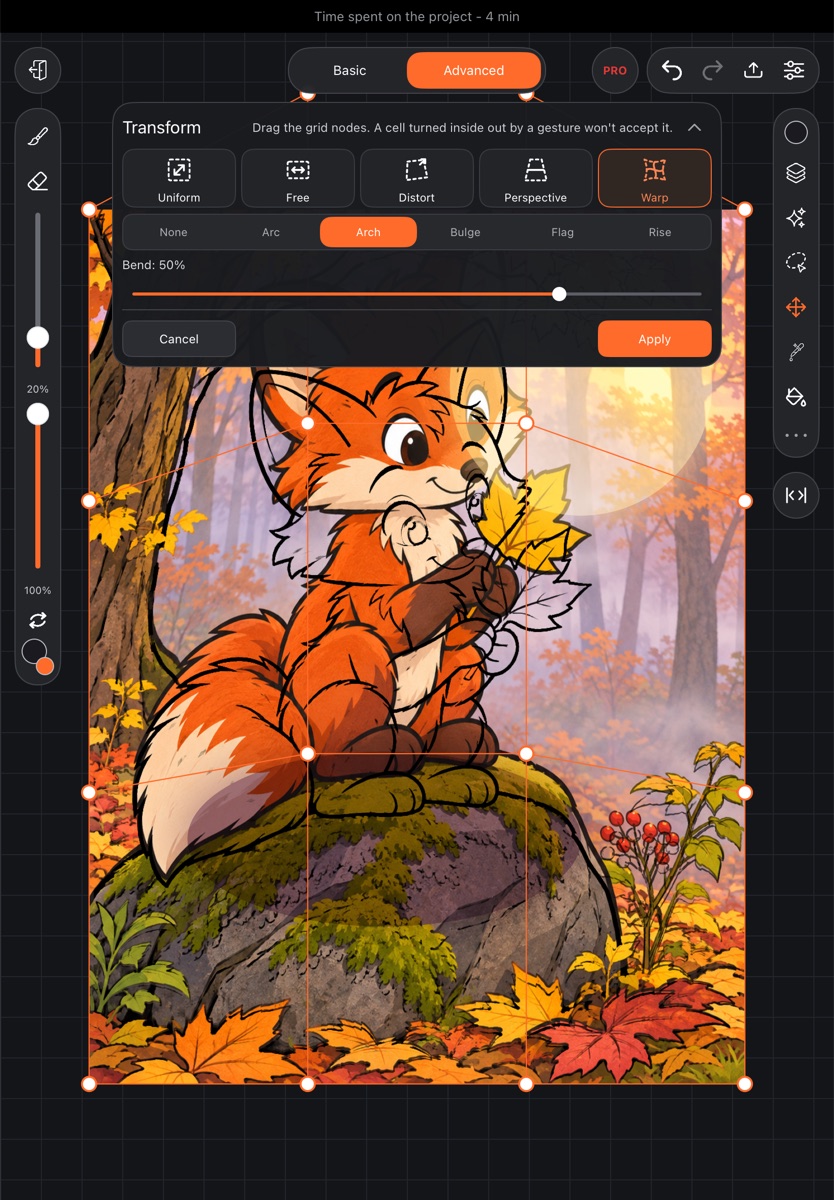
- Warp – bend the drawing with a grid: drag the nodes. A cell turned inside out by a gesture won't accept it.
The rotation circle is available in Uniform and Free. When you switch modes, whatever you've already moved or rotated stays put.
Warp presets
In Warp you get the tabs None, Arc, Arch, Bulge, Flag, Rise and a Bend slider that goes both ways from the middle. After a preset you can still adjust the nodes by hand.
Transforming a selection
When there's a selection, two tabs appear at the bottom of the panel:
- Artwork – moves the selected part of the drawing. The selection is removed after Apply.
- Selection – moves only the selection outline; the drawing stays put. The selection remains after Apply. Warp isn't available here.
Flipping
Transform has no flip buttons. To flip, use the Selection panel: Flip horizontally or Flip vertically. For a whole layer, tap Select all first.